Editing Blocking Supplementary Data
The Global Change feature is also available in the Blocking screen. Except for the fields that you may see in the Label column, it appears and functions the same way as in the Trip Building screen.
-
In the Value field of the Label that you want to edit, type or
choose the new value depending on the type of field.
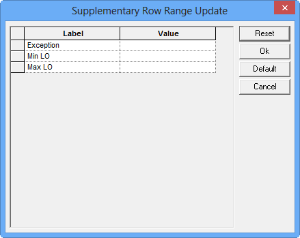
The Supplementary Row Range Update dialog box appears. The following graphic shows some sample supplementary data fields.