Place text in quotation marks for exact match search results.
Inserting Lines into a Line Group
On the Line Groups tab, expand a group by double-clicking on it
or select the Expand All check box at the bottom to show at once what
lines are in each group. You may move lines from one group to another to reassign them.
Note: This is another way to effectively interline existing trips to another Line Group.
On the Line Groups tab, highlight the group that to which you
want to move a line.
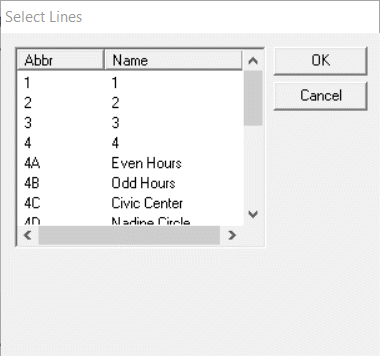
Click Insert Lines. The Select Lines
dialog box appears. It shows you a list of lines that are available.
Click the one that you want to insert, and then click OK.
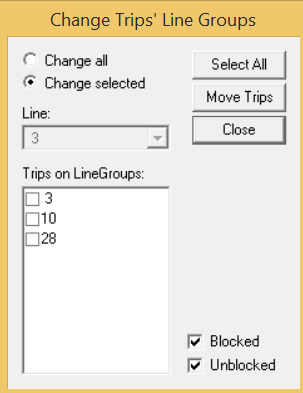
If the line already has trips, the Change Trips' Line Groups
dialog box appears.
To apply changes only to trips that have been blocked or not, clear the
Blocked or Unblocked option. These are
selected by default.
To apply the insert to all Line Groups, click Change
All.
To apply the insert to trips of all the Line Groups in the Trips on
LineGroups list, click Select All.
To apply the insert to trips of selected Line Groups only, select the Line Groups
in the list.
To move the trips of the selected Line Groups, click Move
Trips.
Click Close.
The following changes are applied:
If you selected Change All and some blocks cannot be
moved because they are interlined, a message appears indicating the number of
blocks out of the total number of blocks that cannot be moved.
If you selected Change selectedand some blocks cannot be
moved because they are interlined, a message appears showing the number of blocks
out of total number of blocks in the line group that cannot be moved.
If the trips are unblocked and the Unblocked option was
selected, the trips are moved.
In the Lines dialog box, click
Close.
You now need to create your actual lines (routes), which
become the basis for entering your stops, nodes and eventually building trips.