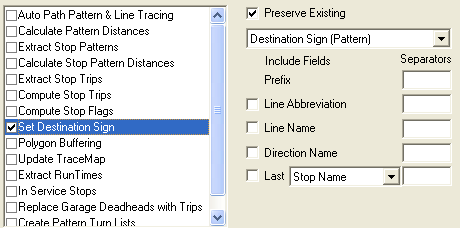
The Set Destination Sign Tool is used to create the initial destination signs that
indicate a vehicle's line and points of destination associated with a pattern.
It allows you to set the data elements you want included in the destination signs for
the selected services and lines.
-
Click . The Extended FX Data Tool appears.
-
In the Service list, choose the service you
want. The default is set at <All> for all lines.
-
To select more than one Service, choose
<Custom>.
-
The Select Service dialog box appears.
-
Select the option, Set Destination Sign.
- Optional:
To prevent the existing destination signs from being overwritten,
select the Preserve Existing check box.
-
In the list, select a stop pattern supplementary data item you want to add to the
destination sign. The options on the menu are the supplementary data fields from the Stop
Patterns tab in the Route Definition screen.
-
In the Prefix field, type the characters that you want to be added
before the series of selected fields, for example, #(number sign).
-
Select the check box of the fields you want to appear in the destination signs:
- Line Abbreviation
- Line Name
- Direction Name
- Last
- Optional:
In the drop-down list beside the Last check box, select a Stops
supplementary data item to be added to the destination sign string.
-
In the blank fields in the Separators column, type the appropriate
punctuation mark, word, space that you want placed between the selected fields, These can
be any character that you want, for example, an ampersand (&) or a hyphen (-).
-
Click Execute.
-
Click Close.