Place text in quotation marks for exact match search results.
Adding Existing Nodes or Stops to Other Lines
You can add existing nodes or stops to other lines using the
Edit dialog box.
Ensure that you have selected the appropriate line when you set
your context in the Set Mode dialog box. Geocode all nodes and stops to
take advantage of the system map and to be able to provide data to other information systems.
Do one of the following steps:
Click Route Definition > Edit.
Click the Edit button: .
The Edit dialog box opens.
To add an
existing node:
Click Add Existing Node.
The fields on the tab are cleared. The number 0 automatically appears in the
Stop Id field. The Repeat check box is
selected by default.
In the Node frame, click the ellipsis
(…) button beside the Abbr
field.
From the fast find list, select the node you want to add.
Optional: To associate a stop to the node, click the ellipsis (…)
button beside the Abbr field in the Stop
frame.
From the fast find list, select the stop you want.
If there is no stop previously associated with the node, and you want to add a
stop, type the stop abbreviation. The stop is added for as long as it exists in the
database. (If no stops are associated with the selected node, you are unable to add
it.)
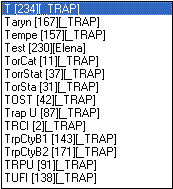
In a multi-agency environment, the lists of node and stop abbreviations include the
agency abbreviations as shown in the following example:
To add an
existing stop:
Click Add Existing Stop.
The fields on the tab are cleared. The number 0 automatically appears in the
Id field. The Repeat check box is
selected by default.
In the Stop frame, click the ellipsis button beside the
Abbr field.
From the fast find list, select the stop you want to add.
The stop data appears in the Name and
Id fields.
Optional: If the node or stop has not been geocoded, proceed to geocode it.
Click Apply.
The node and/or stop is added to the line in the current context without
creating a new node record in the database. In other words, there is no duplication. Any
geocoded information associated with the Stop ID of the added node or stop is also
appended to the line.
If you left the Repeat check box selected,
the data you entered is cleared and the next number in the ID sequence appears in the
Id field. If you clear the Repeat check
box, the data you entered including the Stop ID of the node and/or stop you added
remains on the tab.
Click Close.
Note: Only active nodes are included in the search when you use the Fast Find feature.
Inactive nodes are included in the search only if the system administrator has marked
them as In Service in the Nodes table.

 .
.