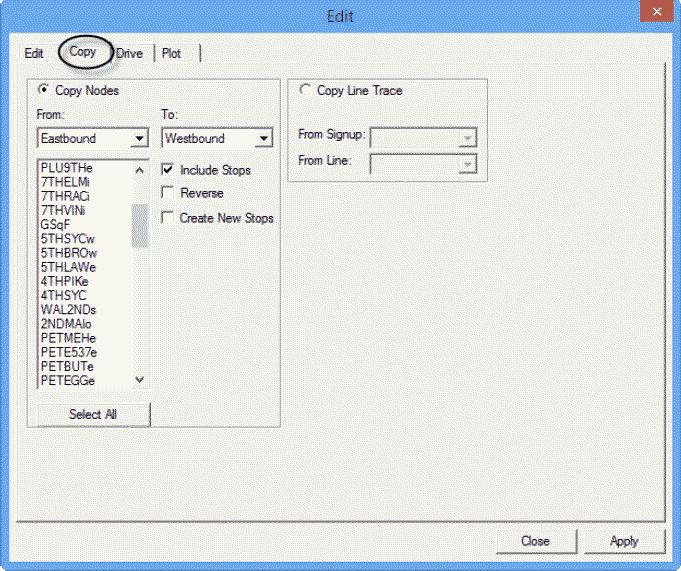
Copy existing nodes and stops from one direction to the other in a line, for example,
create a Southbound direction with information from the already existing Northbound
direction.
Open the Nodes Edit dialog box.
When you select the Copy tab in the Edit
dialog box, the direction of the node or stop you selected appears in the
From drop-down list while the opposite direction appears in the
To drop-down list. The nodes in the direction you selected appear in
the frame below the From drop-down box. The
Nodes and Create New Stops check boxes are
selected by default.
-
On the Nodes tab, select the node or stop on which you want to
base the copy.
-
Do one of the following steps:
- Click .
- Click Edit:
 .
.
The Edit dialog box opens with the Include Stops
option selected by default.
-
Select the Copy tab.
-
Do one of the following steps:
-
To copy the nodes or stops for the opposite direction, for example, from the Northbound
direction to the Southbound direction, select the Reverse check
box.
-
Select the Create New Stops check box to create stops on the
opposite side of the streets along the route.
- Optional:
To copy a route trace from a line in another sign-up period to an existing line in the
current sign-up period, select Copy Line Trace.
Note: The other fields in the dialog box appear shaded.
-
Select the sign-up period you want from the From Signup
drop-down box.
-
Select the line you want from the From Line drop-down
box.
Note: You must select a line that has a route trace.
-
Click Apply.
The Change Stop Abbreviations dialog box
opens.
-
Edit the copied data to differentiate it from the original data.
-
Click Close.