
Establishing Relationships Between Lines
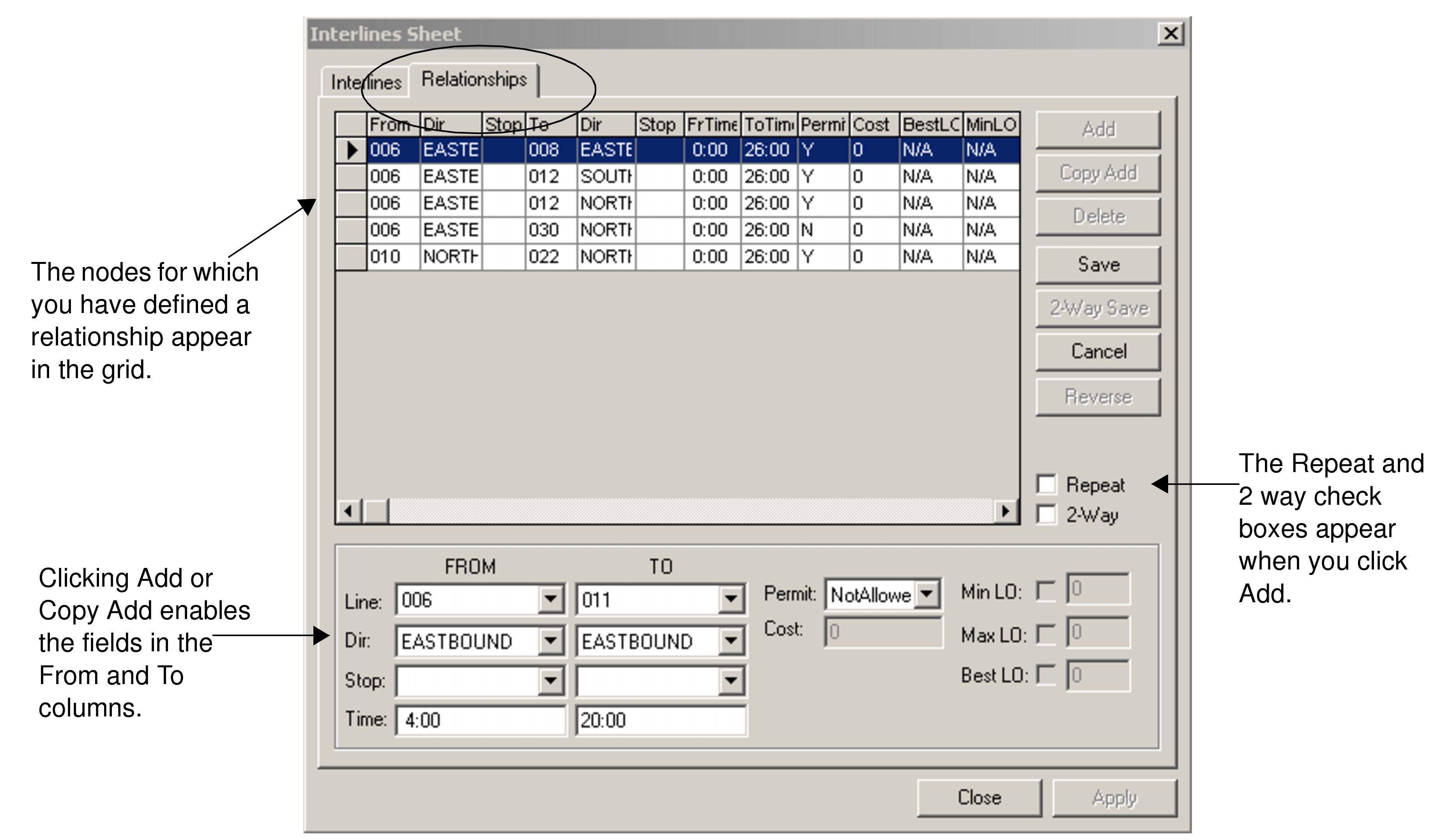
The Relationships tab enables you to establish relationships between lines. The nodes for which you have defined a relationship appear in the grid.
The Relationship feature works the same way as Interlining. Use it to control which lines are to be interlined. The relationship is usually established through a common node. For example, you want Route 3 to only interline with Route 7. A trip of Route 3 continues at midpoint as part of Route 7 and vice versa.
- Select the Relationship tab of the Interlines Sheet dialog.
-
Click Add.
The fields in the From and To columns and Repeat and 2-Way checkboxes are activated.
-
Select the appropriate line, direction, and stop from the lists.
Attention: The stops may be the same or different. If the stops are different, be sure to assign a deadhead.
- Optional:
Do one of the following steps:
- If the relationship pertains to a specific time, type the times within which you
want the relationship to be applied in the Time
fields.Note: These fields are activated with the Time Dependent Interline Relationships system property. Contact your system administrator for information on system properties.
- From the Permit dropdown list, select one of the following
options:
- Permit: The system is set to allow the relationship between the lines you selected.
- Not Allowed: The system is set to identify relationships between the selected lines that are prohibited.
- In the Cost field, type a value that helps apply the
Permit or Not Allowed option you
selected. For example, to make sure the Permit option is applied,
do not change the default of zero (0).
- If you selected Permit but prefer not to let the
relationship happen, type a value that does not contradict the value you may have
entered for a relationship associated with the same node.
The higher the value you type in the Cost field, the less likely the relationship happens and the lower the value, the more likely it happens.
- If you selected Permit but prefer not to let the
relationship happen, type a value that does not contradict the value you may have
entered for a relationship associated with the same node.
- To override the layover settings you may have set previously in Properties, select MinLO, MaxLO, and BestLO and enter values in the fields beside them.
-
To maintain the dialog in the Add mode in case you want to type another set of data, select Repeat.Note: The fields in the From and To columns remain activated after you click Save.
- If the relationship pertains to a specific time, type the times within which you
want the relationship to be applied in the Time
fields.
- Optional:
Do one of the following:
- To apply the relationship in both directions, select 2-Way and click Save.
- To save the data in both directions, click 2-Way
Save.Note: If the relationship already exists, a message box appears warning you that the item already exists.
Click OK. Change the data if necessary.
- Click Apply.
- Click Close.