
Viewing and Shifting Trip Times
You can shift the trip times displayed on the histogram with the Properties dialog.
-
In the Single Track Tool dialog, click
Properties:
 The Parameters dialog appears.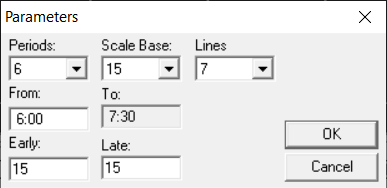
- Set the parameters by which you want to search for overlapping rail trip times.
- From the Service dropdown list, select the appropriate service.
-
Click Select Node Pair:
 The Select Node Pairs dialog appears.
 -
In the Select Node Pairs dialog, perform the following:
- In the From Node field, type the name of the node you want or click the ellipsis button.
- From the list, select the From node.
- From the To Node list, select the node that pairs with the selected From Node.
- Click Add.
- Click Close.
-
Click Refresh:
 The trip times of the selected line within the set time period appear on the Selected Trips grid and are illustrated on the histogram.
 - Optional:
To view the trip details, click Trip details:
 .
The trips with the selected node pair appear in the Trip Detail grid.
.
The trips with the selected node pair appear in the Trip Detail grid. - Optional:
Select a trip on the Selected Trips grid and click the
Blocks graph button:
 The block details appear in the right grid.
 -
Do one of the following:
- To change the time period displayed in the histogram a minute at a time, click the
Previous or Next buttons:


- To change the time period in increments set for the Early or Late parameters set, click Early or Late.
- To change the time period displayed in the histogram a minute at a time, click the
Previous or Next buttons:
- In the Selected Trips grid, select the trip that you want.
-
In the field between the Minus
 and Plus
 buttons on the screen toolbar, overwrite the number 1 with the number of minutes
by which you want to shift the trip times.
The selected trip is shifted according to the number of minutes you entered.
buttons on the screen toolbar, overwrite the number 1 with the number of minutes
by which you want to shift the trip times.
The selected trip is shifted according to the number of minutes you entered. - Optional:
Click or click Integrity:
 The system shifts the time of the build node and regenerates the selected trip. If you do not turn Integrity on, the system shifts all the times of the selected trip.
 - In the Trip Building screen, check if the new trip times are shown for the appropriate trips in the Trips grid.