
Searching for and Assigning Special Points to Patterns
The Drive feature helps you search for and assign Special Points to patterns.
The Drive feature on the Special Points tab is similar to the Drive feature on the Nodes tab. While the Drive feature on the Nodes tab helps you search for stops and assign stops to a route, the Drive feature on the Special Points tab helps you search for special points on the system map and assign the points to a pattern.
- Select a pattern on the Stop Patterns grid.
-
Click or right-click the Special Points grid. From the
shortcut menu, select Drive Points.
The Drive dialog box appears.
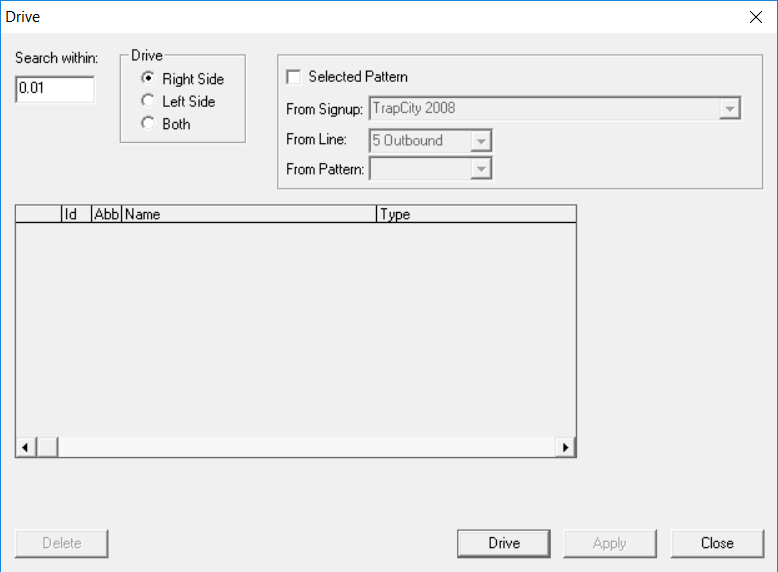
- In the Search within field, type the radius within which you want the system to search for special points.
- Optional: In the Drive frame, click the Left Side or Both options depending on the direction of the selected pattern. The Right Side option is selected by default.
- Optional:
To assign the special points to a specific pattern, select the Selected
Pattern check box. The fields below the check box are activated.
- In the From Signup list, select the sign-up period.
- In the From Line list, select the line you want.
- In the From Pattern list, select the pattern.
-
Click Drive.
The special points within the set radius appear in the lower frame.
- Click the special points you want to associate with the selected pattern.
- Click Apply.
- Click Close.