Viewing the Trip Building Grids
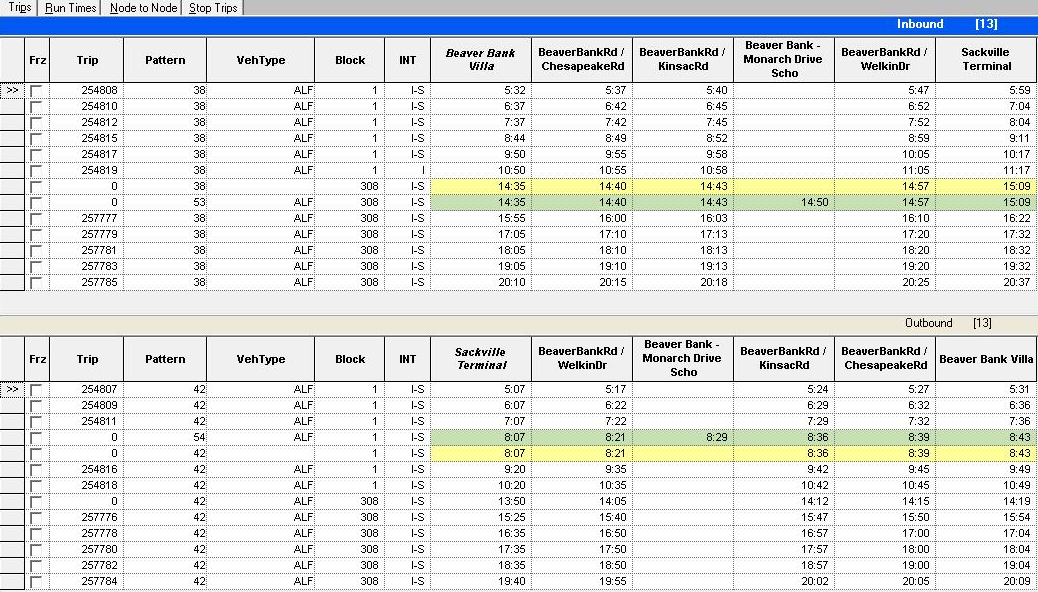
You can display the Trip Building grids while filtering out unnecessary columns with the options provided.
-
To view one of the trip grids on the Trips tab, click the
direction bar on top of the grid you want. The selected grid expands while the second grid
disappears. To view both grids, click the bar again.
If both grids are shown on the Trips tab, the direction bar of the active grid is highlighted. This is similar to the behavior of the grids in most tabs in the Route Definition screen.
When a record is selected, a double arrow appears on the marker column (first column on the left).
-
To view columns that are not within view on the screen, click the
horizontal scroll bar. Only the columns that display times now
move to the left or right depending on how the scroll bar is dragged.
If you scroll to the right, the columns on the left remain static while the node columns, starting with the first node appear to slide under the static columns as the hidden columns are displayed.
If exceptions are applied to the trips, they appear highlighted in different colors based on the type of exception. The colors are similar to those applied in the Blocking screen.
The colors are:- Blue: Trips with Day or Regular exceptions
- Green: Trips with Exclusive exceptions, for example, School Day (SD)
- Yellow: Trips with exceptions that are opposite to the exclusive exceptions, for example, School Holidays (#SD)
The green and yellow colors prevail if both Day and Exclusive exceptions are applied to the trips. For example, if a trip had a Day exception and an Exclusive exception, the trip would be highlighted in green. The trip would be yellow if the exception was opposite of the Exclusive exception.