
Adding Segments
Segments can be added based on existing segments or create new segments.
Note: The forward and reverse values must be identical to be copied to the new segment. If
they are different, the default values are used.
-
On the MapEdit screen, make sure the Select button is pressed by
performing one of the following steps:
- Right-click the map, and then click Segment Mode.
- Click .
- On the toolbar, click the Select button:

-
Click , or click the Add button:
 The Properties dialog box appears. If adding a segment while another segment is selected, the Properties dialog box shows the selected segment's properties. If adding a completely new segment, the Properties dialog box shows no data and the Name Properties dialog box also appears.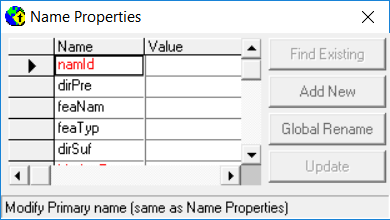
-
Do one or both of the following steps:
- To connect the new segment to an existing endpoint, ensure that the
Snap To Existing button on the toolbar is selected (click or click the Snap button):

Click one or more point locations for the new segment. New segments cannot be connected to existing shape points.
- To create a point on the segment that is not connected to an existing shape point,
ensure that the Snap To Existing button has not been pressed by
clicking , or click the Snap button again:
Click one or more point locations for the new segment. When the Snap To Existing button is not pressed, new end points cannot be connected to an existing segment, even if the end point is located precisely on an existing point.
As locations on the map are clicked, the new points and segment appear.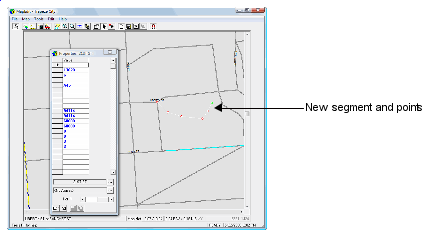
- To connect the new segment to an existing endpoint, ensure that the
Snap To Existing button on the toolbar is selected (click or click the Snap button):
- Optional:
To delete the point that was last created, click , or click the Delete button:

-
Click the Save button:
