
Finding Intersections on the Map
After selecting a street in the Street Wizard, view a list of all streets that intersect with the selected street.
-
Click (or press F7), or click the Street
Wizard button:

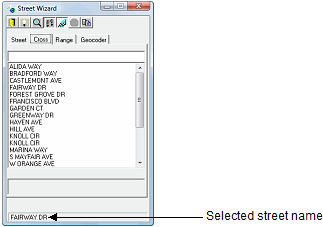
The Street Wizard dialog appears.
-
Click the Cross tab, which lists all streets that intersect with
the street selected on the Street tab.
-
To view an intersection on the map, click the intersection in the
Cross tab list, and do one or more of the following steps:
- To zoom in on the intersection on the map, click the Zoom
button:

- To highlight the intersection on the map, click the Highlight
Street or Point button:

- To zoom in on or highlight intersections one after the other, click the
Follow Current Selection (Zoom or
Hilite) button:

- To specify whether to follow the selected street by zooming in on or by
highlighting the street on the map, click the Zoom or
Highlight Street or Point buttons:
- To zoom in on the intersection on the map, click the Zoom
button: