Place text in quotation marks for exact match search results.
Viewing Data for Multiple Stops
In addition to viewing information for a specific stop, you can also view all passenger count information collected within two or more nodes/stops.
Click Ridership > Show All Stops.
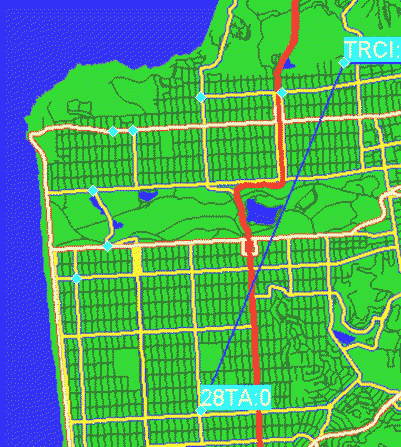
The stops are shown on the Trips tab and on the
map.
On the Trips tab, select the appropriate
Line/Direction view bar.
On the map, click a node or stop label.
Press SHIFT and click another node or stop.
The selected nodes/stops are highlighted in blue and the stops are shown as light
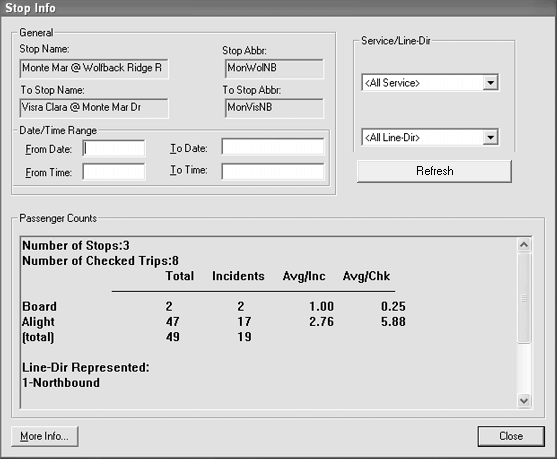
blue diamonds.The Stop Info dialog box displays the total and average
boardings and alightings for all selected stops.
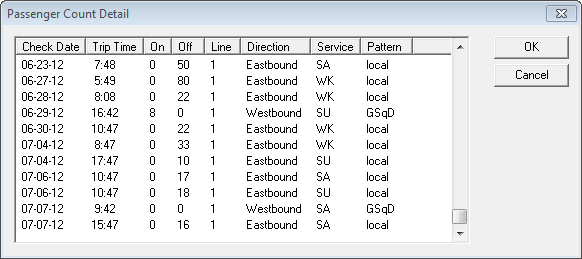
Optional: To view more information about the first stop you highlighted, click More
Info.