Place text in quotation marks for exact match search results.
Viewing Stop Info
In addition to providing a visual display of nodes and stops for trips in the
Ridership Analysis screen, the map also allows you to access passenger
count, schedule adherence, and other details for a specific stop.
The system map only shows nodes unless you change the map settings to show all stops.
Click Ridership > Show All Stops.
The stops are shown on the Trips tab and on the
map.
On the Trips tab, click the Line/Direction
view bar or select a record in the appropriate pane.
Click the node/stop label on the map that you want.
The Stop Info dialog box appears.
The data for all services and lines for the selected stop is shown. To view
additional information including schedule adherence, scroll down in the
Passenger Counts frame.
Optional: To view data for specific services, lines, and time periods, select or type the
appropriate values in the filter fields and click Refresh.
To see more information about the stop data, click More
Info.
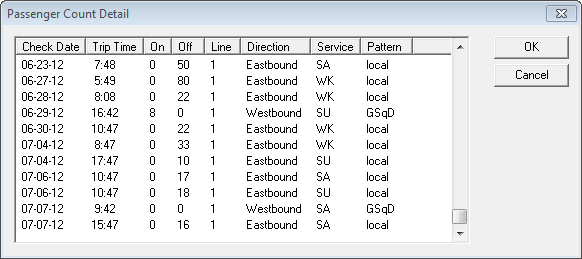
The Passenger Count Detail dialog box appears.To sort the data in the Passenger Count Detail dialog box,
click a column header such as Check Date.

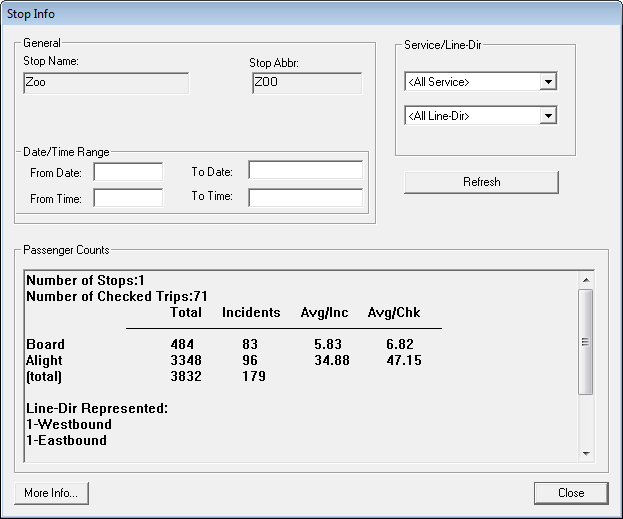 The data for all services and lines for the selected stop is shown. To view additional information including schedule adherence, scroll down in the Passenger Counts frame.