Viewing the Demographic Analysis Results in Multiple Ways
You can choose to view the results of the demographic analysis in different ways.
-
Do one or more of the following steps:
- To ensure that your system map appears and is centered, click the
Center button:
 .
. - On the Demographic/Location Analysis screen, select the
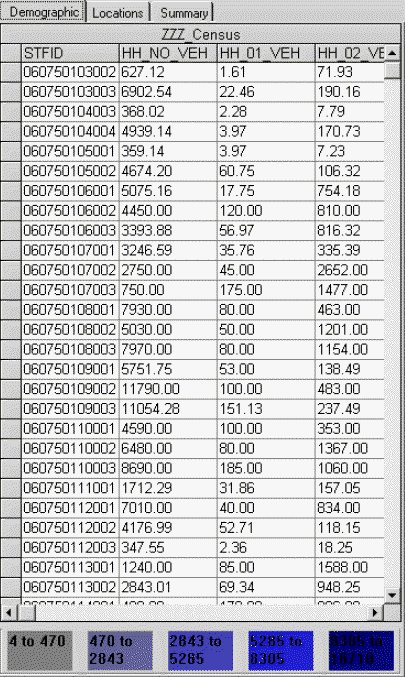
Demographic tab to see detailed results in the grid.
- To ensure that your system map appears and is centered, click the
Center button:
-
Do one or more of the following steps:
- Click the various data column headers to change the results that are displayed on the map.
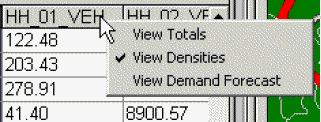
- Right-click a column header to produce a menu that allows you to change the kind
of data that appears in the grid. From the shortcut menu, choose to view the data in the
form of the totals, densities, or demand forecast.
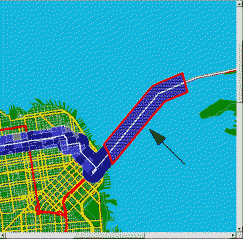
- Click the colored data ranges at the bottom of the tab to highlight the corresponding polygons for that range on the map. They are outlined in red.
- Click a row header to highlight a row of data and to display the corresponding
polygon on the map. It is outlined in red.
- To change the attribute data, the range values are displayed for values of each variable as well as the color coding. This can be important for showing results. This process can only be performed after the initial processing of the data.
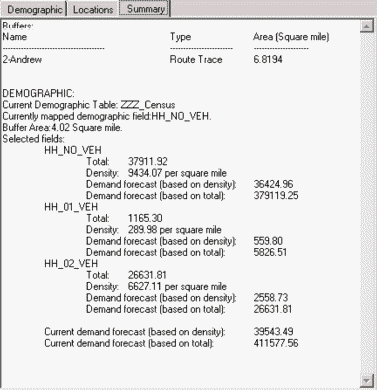
- On the Summary tab, view the following data:
- Selected buffer, route, point or polygon.
- Route’s name (if applicable)
- Name of the selected demographic data table.
- Variables that are included in the analysis.
- Buffer area in square miles.
- Summary of the results including totals and densities per square mile for the selected variables.
-