
Bidding New Features
Bidding enhancements added between v21.23 and v21.34.
General
- In the Bidding screen, an Audit column was
added to the Bidding Requests tab. It shows the badge number of
the employee who made the request, and on what day and at what time the request was
made.

- An OPS Validation Message indicating that the bid request deadline hasn't been set was
updated to show employee badge number instead of employee ID.

-
Automatic volunteer creation is now available for bid units using ReliefDayOff and ReliefRosters bid categories.
Automatic volunteer creation is now available in Pass:2 for bid units using the ReliefVacation bid category.
When the property is selected, the system does the following for employees whose bid units use the ReliefVacation bid category:- After Pass:1, the employee's Volunteer status is updated based on the selected day off Quota.
- After Pass:2, the employee's Volunteer status is updated based on the selected relief weeks' day off templates.
- If Pass:2 is rolled back, employee Volunteer statuses are updated to match the original Pass:1 results.
- If Pass:1 is rolled back, all created Volunteer statuses are removed.
- If Delete Employee Bid is selected for Pass:2, then the employee Volunteer status is updated to match the original Pass:1 results.
- When the property is cleared, then employee Volunteer statuses are updated based on the selected day off Quota and selected work.
To automatically create employee volunteer information, include a bid unit with a bid category of Volunteer in the bid. The Volunteer bid unit must have the Auto Create Volunteers option and a Volunteer Type Group selected. The system automatically assigns all volunteer types in the selected volunteer type group to the employee for the bid period.
Holidays
- In the Holiday screen, the Service Group Id No
Service was updated to No Fixed Route Service.

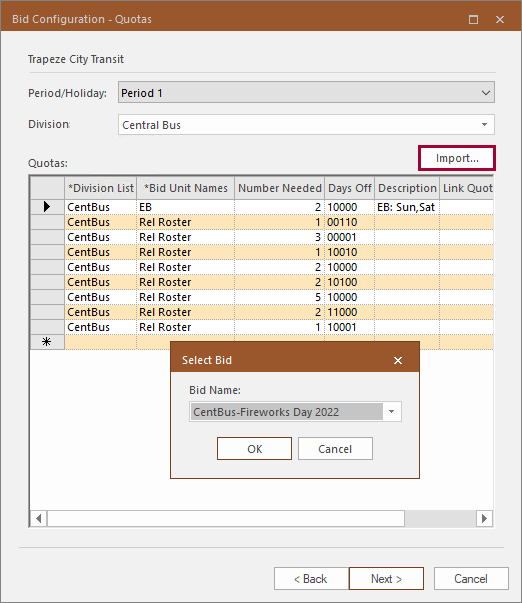
- On the Bidding screen, in the Bid
Configuration wizard, on the Bid Configuration - Quotas
page, when importing holiday bid quotas, information is now copied from the first holiday
of the old bid.
-
In the Holiday screen, any Service Group Id (including No Fixed Route Service) that specifies only one service day can be selected for non-imported (OPSOnly) agencies.
For extra work created for a single date, if the extra work's Day Type Group includes the day type of the activated day, then the extra work is available on the holiday.
For other extra work, the property determines how the system behaves.
When is selected:-
For holidays created with the Division Group's Service Group Id defined as No Fixed Route Service:
-
After selecting Applying Holiday Service to roll out the holiday the Auto Holiday Bid button is enabled (even though there is no matching extra work).
- When using Activate Day, no extra work is created.
-
-
For holidays created with the Division Group's Service Group Id defined as any other (one-day only) service type:
-
After selecting Applying Holiday Service to roll out the holiday, if there is matching work available, the Auto Holiday Bid button is enabled.
- When using Activate Day, extra work with a Week Template that includes the selected service day is created.
-
When is cleared, a holiday can only be created with a Division Group of No Fixed Route Service.
-
After selecting Applying Holiday Service to roll out the holiday the Auto Holiday Bid button is enabled.
-
When using Activate Day, all extra work with a Week Template that includes the day being activated is created.
-