General System Changes
General OPS enhancements added between v21.23 and v21.34.
- OPS-Web Bidding Requests and OPS-Web Operational Bidding are now supported in v21.
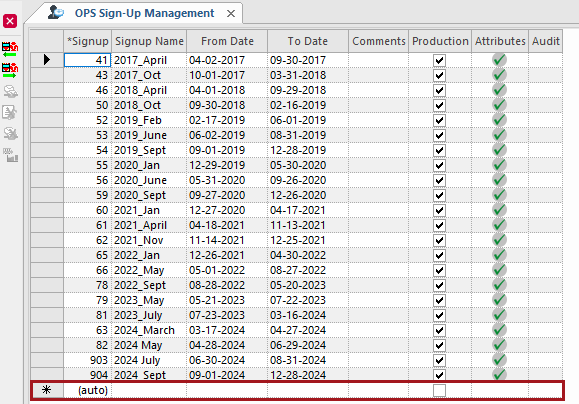
- In the OPS Sign-Up Management screen, when creating new sign-up
periods the Signup value is now automatically generated.
 Divisions are now loaded from the Service Shell. If you are updating division
permissions, you must close and restart the Client Shell or open OPS Upgrade
Utilities, select System Maintenance, and run the
Reset OPS Cache Data for changes to take effect.
Divisions are now loaded from the Service Shell. If you are updating division
permissions, you must close and restart the Client Shell or open OPS Upgrade
Utilities, select System Maintenance, and run the
Reset OPS Cache Data for changes to take effect. 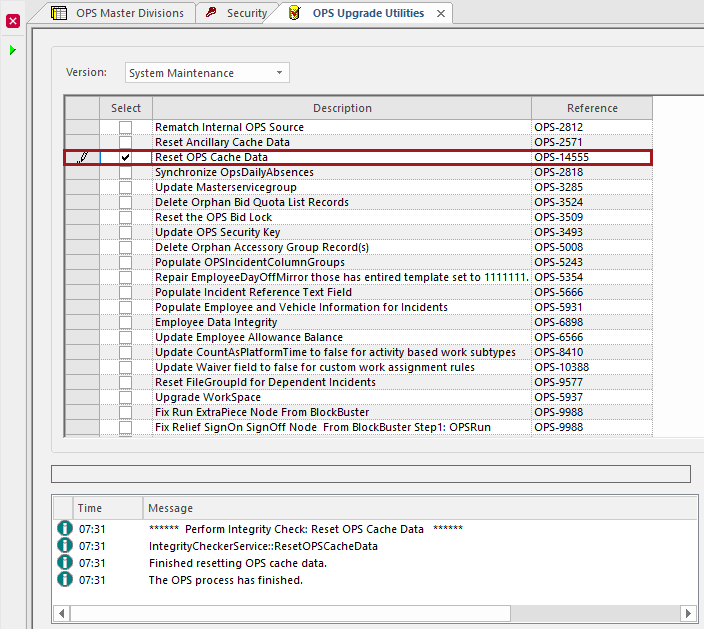
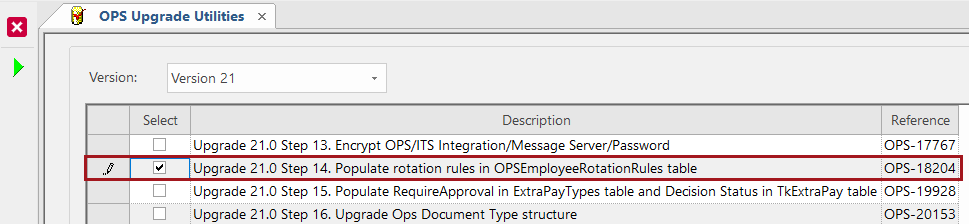
- In OPS Upgrade Utilities, under Version
21, Upgrade 21.0 Step 14. Populate rotation rules in
OPSEmployeeRotationRules table (Reference: OPS-18204) was updated to take
property dependencies into consideration.
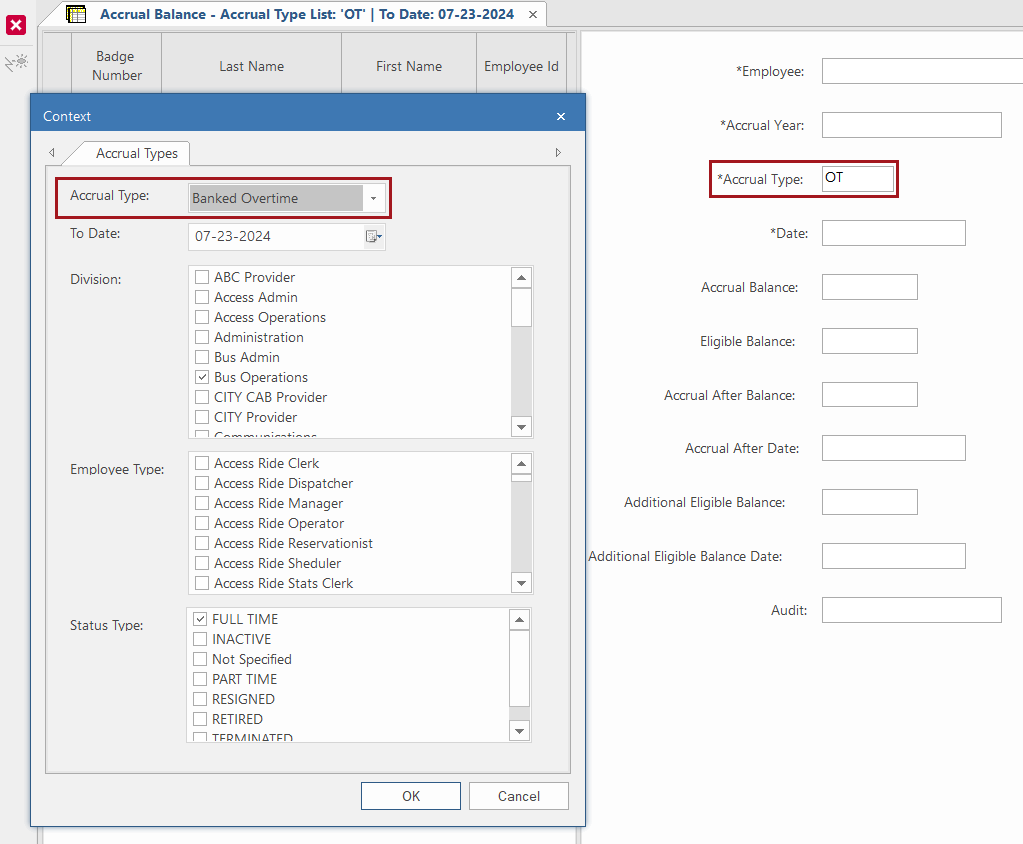
- In Accrual Balance ancillary data, the Accrual
Type field now defaults to the value currently defined in the Context
(F3).
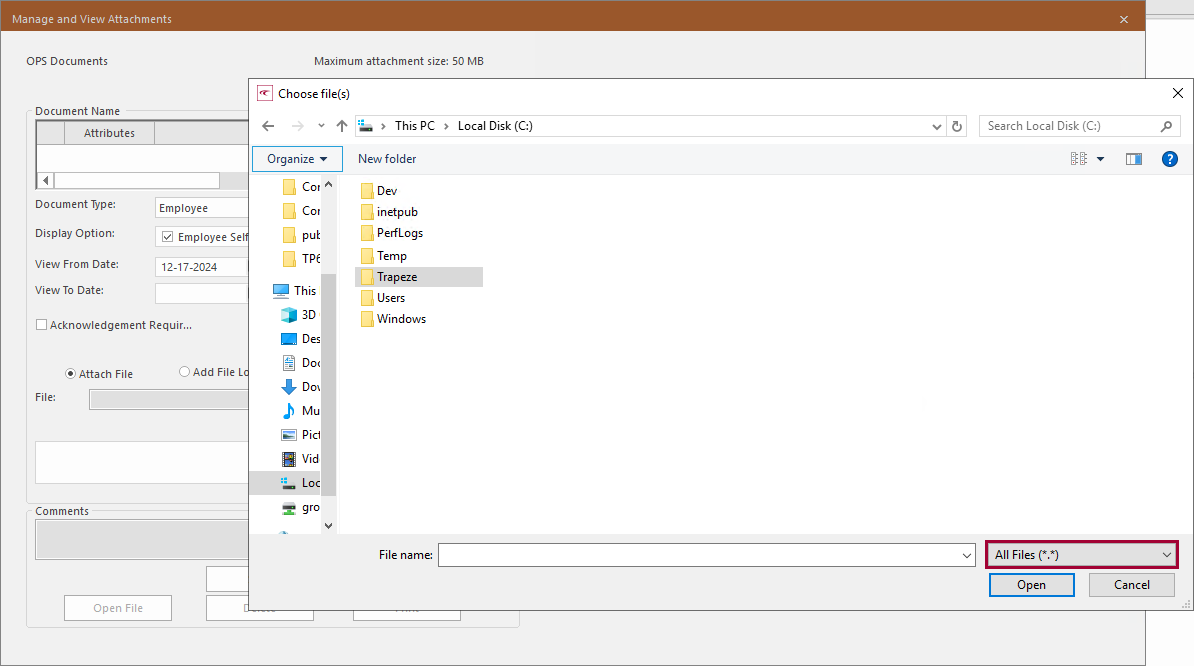
- In the Manage and View Attachments dialog, the default file type
is now All Files.
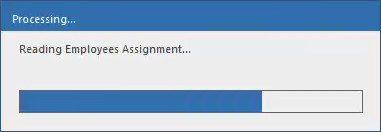
- Processing bars were added to the following screens and dialogs:
- Daily Activity (when loading the screen)
- Work Planner (when loading the screen)
- Weekly Timekeeping Summary (when loading the screen)
- Day activation for divisions using the OPSOnly
transportation mode is now the same as day activation for divisions using the
Fixed transportation mode. (Previously,
OPSOnly was treated the same as the
Demand transportation mode during day activation.)
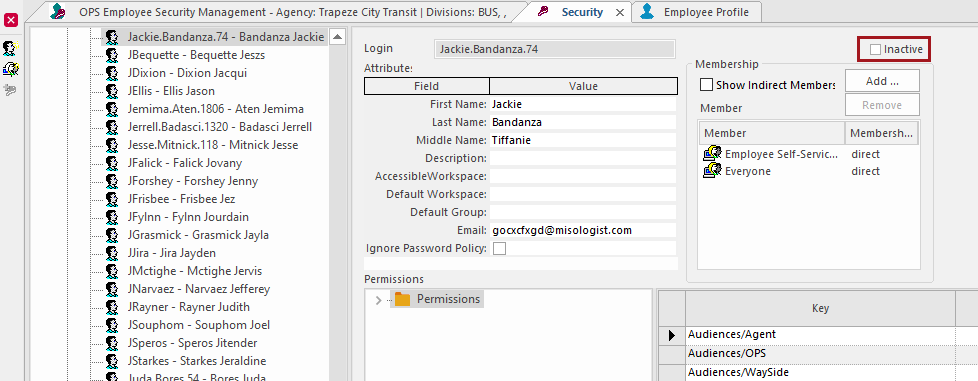
To support instances when employees may take on new roles in the transit agency, security user accounts are now unlinked from Employee Profile records when an employee becomes inactive, instead of automatically updating to a matching inactive status.
This change is only applicable if the property is defined as User Name and Password.
To update the employee record as inactive, on the Employee Profile - Status screen, select a Status Type of INACTIVE.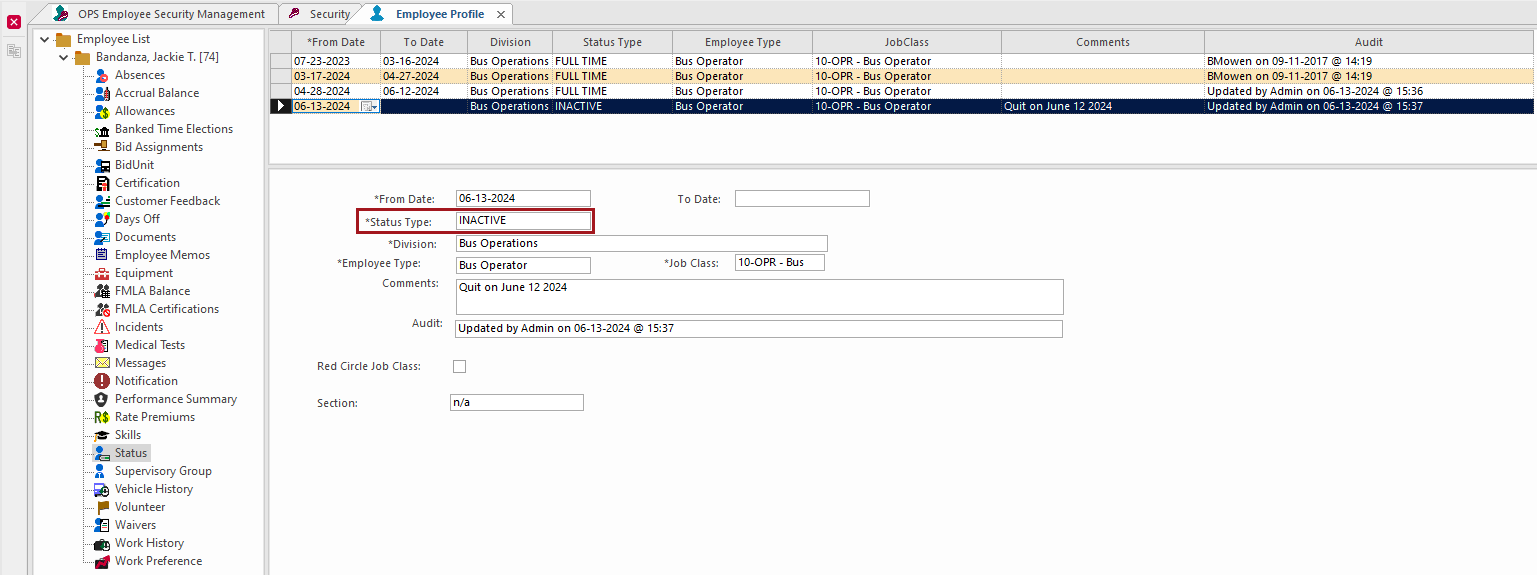 In the Employee Profile - Employee Card screen, the employee Identity is cleared.In the OPS Employee Security Management screen, the CoreIdentity (user name) is deleted and the record turns red to indicate the employee status is inactive.

In the Security screen, the user previously associated with the employee record is retained and Inactive is cleared. You can update the record to be Inactive or delete it, if needed.