Changing Page Setup and Orientation

You can change the page setup and orientation of the COM screens using the Page Setup and Print Setup dialog boxes.

  1. To change the page setup:
    1. Click File > Page Setup.
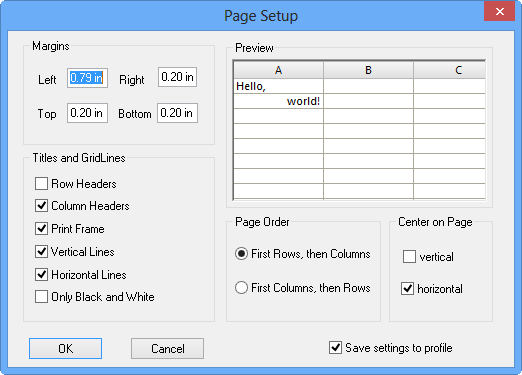
      The Page Setup dialog box appears.
      Page Setup dialog box
    2. Set the appropriate options in the following frames:
      • Margins - Type the size you want for each of the margins.
      • Tables and GridLines - Select the options you want to include or apply.
      • Page Order- Select the order for printing rows and columns.
      • Center on Page - Select whether you want to center the document vertically and horizontally on the page.
    3. To save the settings to your workspace profile, select the Save Settings to profile check box.
    4. Click OK.
  2. To change the page orientation:
    1. Click File > Print Setup.
    2. In the Orientation frame, click the orientation you want to apply:
    • Portrait
    • Landscape