Only feedback records completed in COM can be created as OPS Incidents. Ensure all the
required values are filled in or selected.
When users choose to delete a feedback with a link to an OPS incident report, a warning appears.
On the COM Investigator screen toolbar, click the OPS
Incident button: .
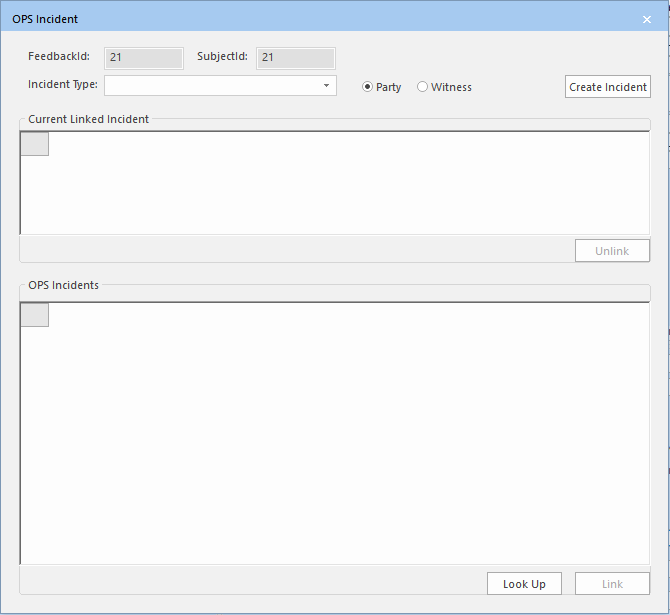
The OPS Incident dialog box appears.
The values in the FeedbackId and
SubjectId fields are automatically generated.
If
Incidents created in COM have been previously linked to the feedback record, they are
listed in the Current Linked Incident pane. OPS Incidents, which
were created in OPS and have been linked to the feedback record, are shown in the
OPS Incidents pane.
In the Incident Type drop-down list, select the appropriate
type.
The Incident types are created in OPS.
To indicate if the client was involved or witnessed the incident, click Party or Witness as appropriate.
Click Create Incident.
A message prompts you to confirm that you want to create an incident for the
current subject.
Click Yes.
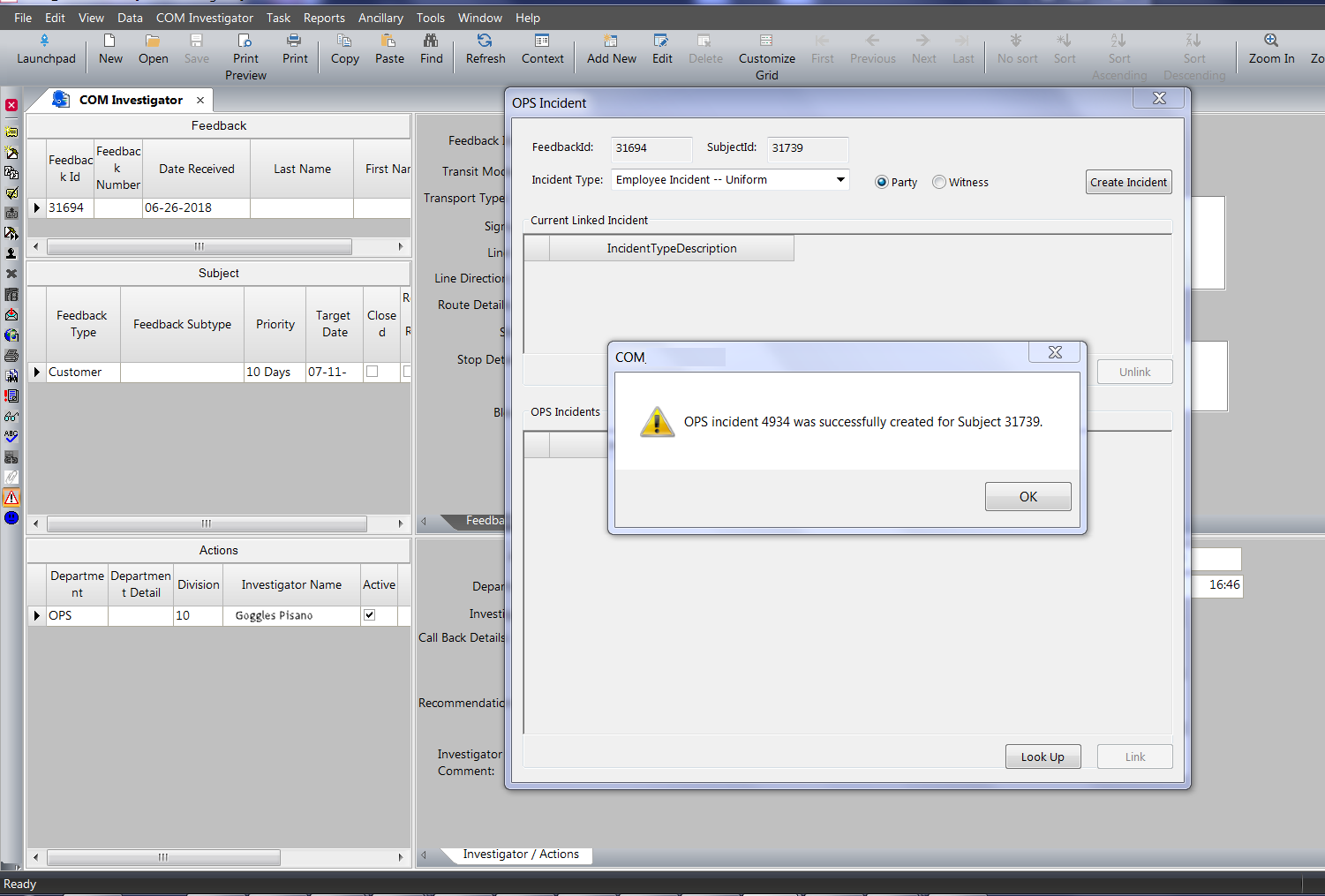
A message confirms that an OPS Incident has been created for the selected subject. The
following graphic shows an incident linked to a specific subject:
The following graphic shows how it appears in the OPS Incidents
Admin screen:

 .
The OPS Incident dialog box appears.
.
The OPS Incident dialog box appears.