
Finding Locations
The Find Location dialog box is a search tool for finding a specific location. It can be accessed from most screens by clicking the Find button. It also launches from the Locations screen when the Search result option is selected.
-
In the Locations screen, select the Search result
option, and then click Display OR click the
Find button:
 The Find Location dialog box appears.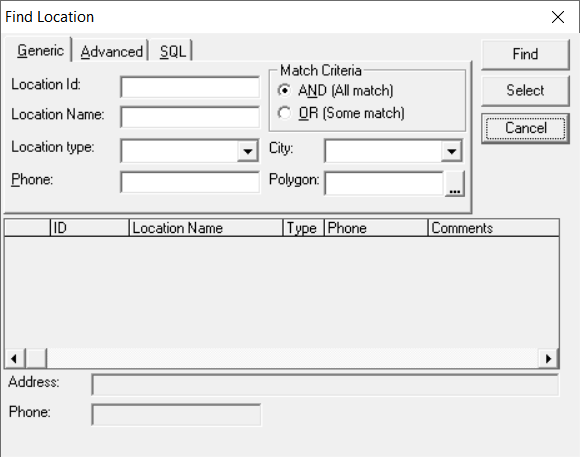
-
Type search criteria using the following fields:
- Location ID - Type the ID number of the location.
- Location Name - Type the name. If you do not know the exact name, type a portion of the name followed by an asterisk (*). The asterisk is known as a wild card. It tells the system that there are more letters to the location name than indicated. The system then generates a list of all locations whose names begin with the letters you typed.
- Location Type - Use the list to choose a location type. All locations under this category are listed on the screen in alphabetical order. For a more focused search, select a Type and, in the Location Name field, type the name of the location.
- Phone - Type the phone number of the location. City - Type the city of the location
- Polygon - Select the polygon assigned to the
location.Note: This field is case sensitive. Make sure you copy the information exactly as it has been saved in the database.
-
To search for an exact match, leave the AND (All match) option
selected (by default).
The system matches its data to your entries one at a time.
-
To view locations of a certain type or whose names begin with specific character,
select the OR (Some match) option. For example, type a letter and
an asterisk in the Location Name field such as “J*”, and then click
an option in the Location type list such as “Banks”.
The system displays locations beginning with the letter J as well those registered as banks.
-
Click Find.
The search results are displayed in the lower section of the dialog box.
-
Highlight the location you want. There may be multiple locations for your selection.
The address field displays the exact address of each location. Make sure you have the right one.
-
Click Select.
Your selection is copied to the active window.