Lines By Node and Lines By Stop Options
You can view headway sheets of lines that are associated with a specific node or stop on the headway sheet currently being viewed.
Having two or more headway sheets on your screen for lines that share a node (timing point) or stop is particularly useful if you must tell callers which route they can transfer to, and whether that route goes as far as they would like to go — all without creating an itinerary.
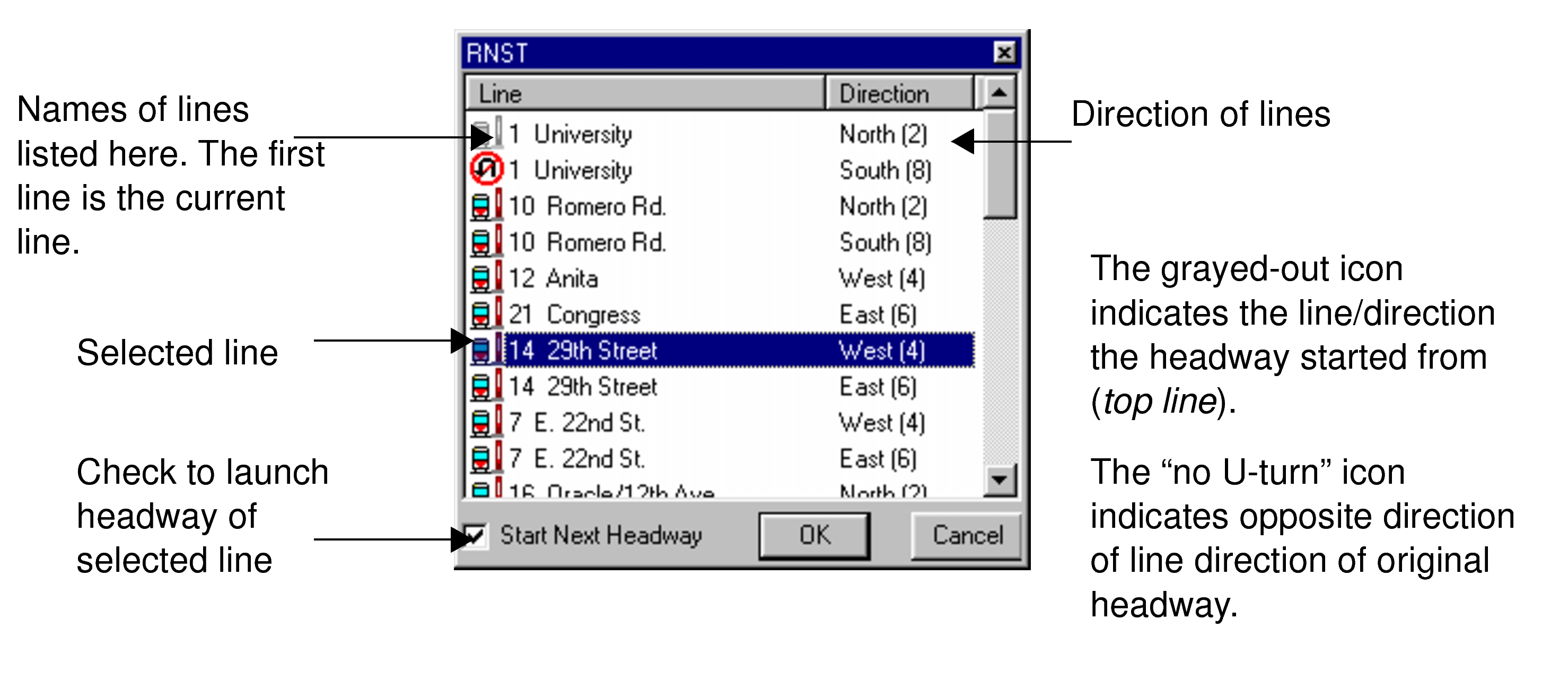
- The Lines by Node option allows you to view headway sheets for other lines that pass through a particular node (timing point) in addition to the headway sheet that you are already viewing.
- The Lines by Stop option allows you to view headway sheets for other lines that pass through a given stop in addition to the headway sheet that you are already viewing.
Note: If a column heading is highlighted in black, then it is both a stop and a node. If a
column heading is highlighted in blue, it is a stop only.
To access the Lines By Node option or Lines By Stop option, select a field and right-click. From the shortcut menu, choose Lines By Node or Lines By Stop. A dialog is displayed to show all lines intersecting the selected node or stop.