Methods of Opening Headway Sheets
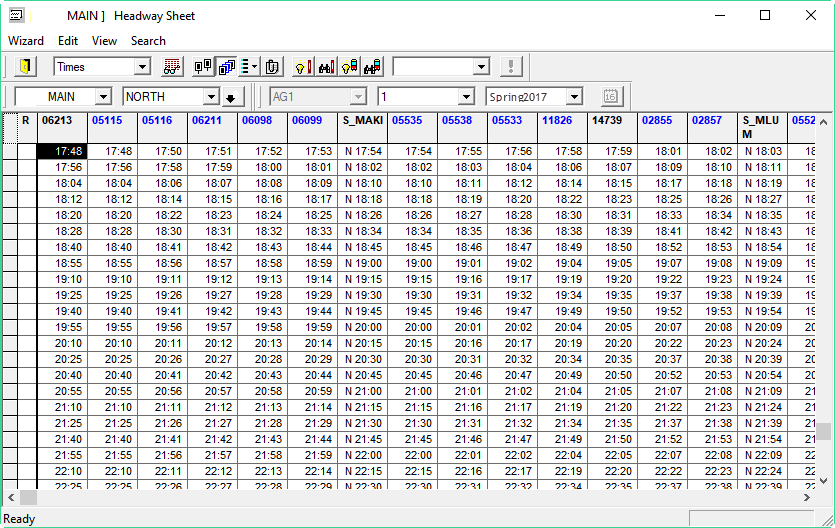
The Headway sheets can be opened from the main menu and toolbar, and on different tabs in the Itinerary Planning screen.
- From the main menu, click . By default, the line selected in Set Mode (F3 context) is displayed. If there is no line selected in Set Mode, then you will see your site’s first line in ascending numerical order.
- From the main toolbar, click the Headway Wizard button:

- On the Details tab in the Itinerary Planning screen , highlight an itinerary leg. Click the Headway Sheet button. (You can also either double-click the leg or right-click and choose Headway Wizard from the shortcut menu.) The Headway Wizard shows the route from the leg. Trip times begin on the stop from your itinerary leg.
- On the Lines and Stops tab in the Itinerary Planning screen, highlight a route and stop. Then, right-click and choose Headway Sheet from the shortcut menu. The Headway Wizard shows the times of the selected route. Times begin from the selected stop.
- On the Route Wizard screen, select a route and, click the Headway
button: