
Adding Users

You can add users and assign them to an appropriate access level.

For example, to allow someone to log on and access reports, create a user name for that individual and assign them to the group called Report group.
  1. On the Navigation pane of the Provisioning tab, click Accounts > Users.
    The Users list is shown in the middle pane. The Tasks pane shows the different groups of tasks that you can use to manage the user accounts, for example, User Access.
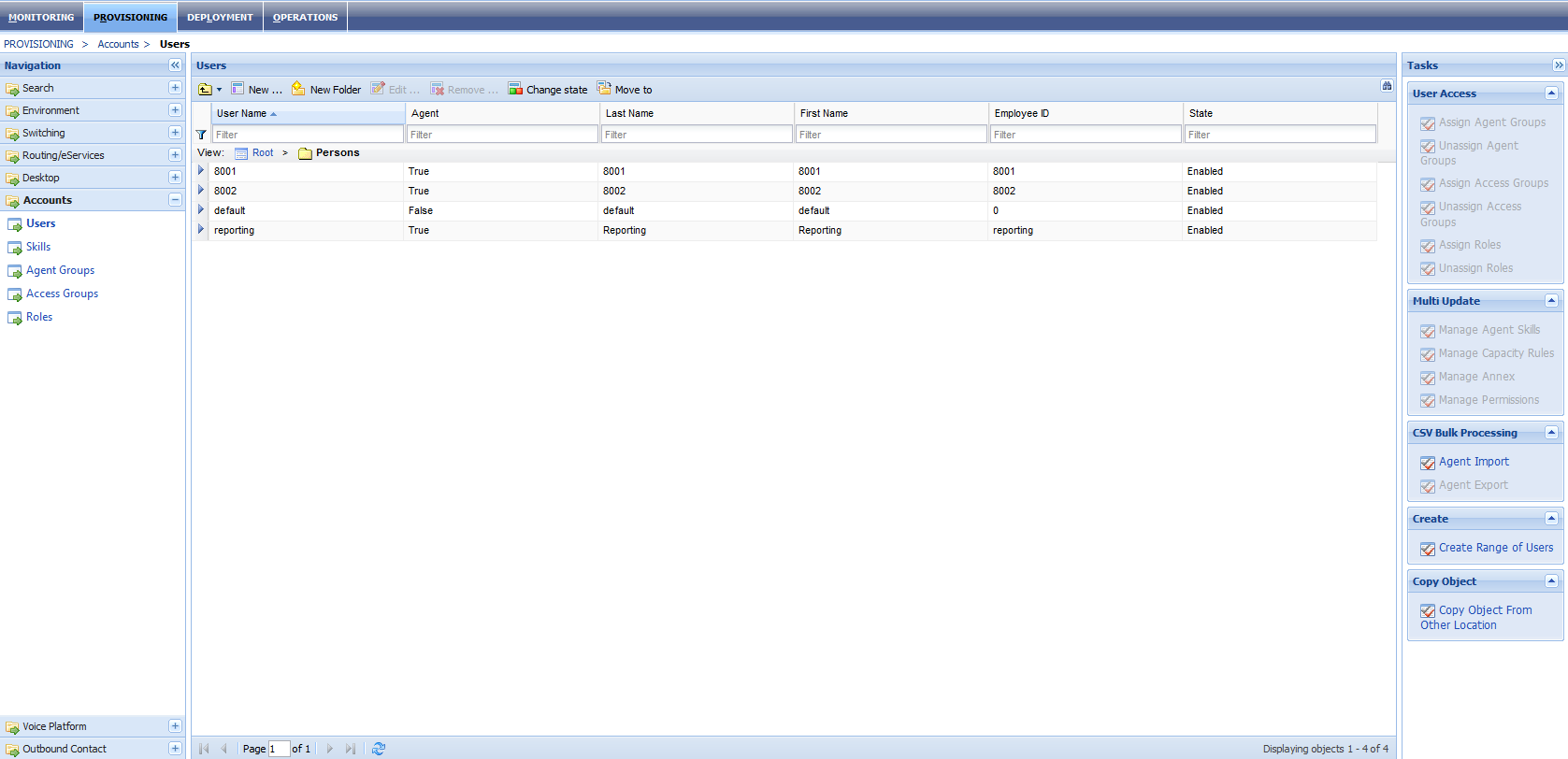
    Account Users
  2. Click New on the toolbar above the user list. By default, the General group of fields on the Configuration tab are displayed.
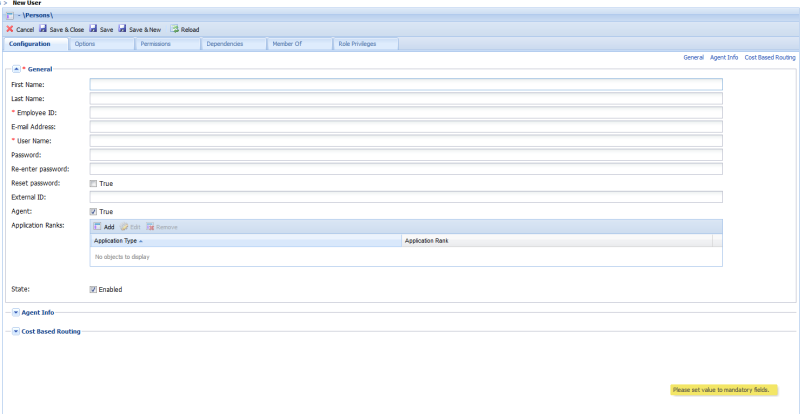
    New User
  3. Complete the fields. Note the mandatory fields (with asterisks).
  4. Proceed to the Agent Info and Cost Based Routing fields, if applicable.
  5. Click Save.
    Note: Among the other tasks that the Users pane allows you to perform are: edit user accounts, add users to groups, and set user permissions.