
Basic Components of a Workspace
The following graphic shows the COM Investigator screen, which illustrates the typical components of a workspace.
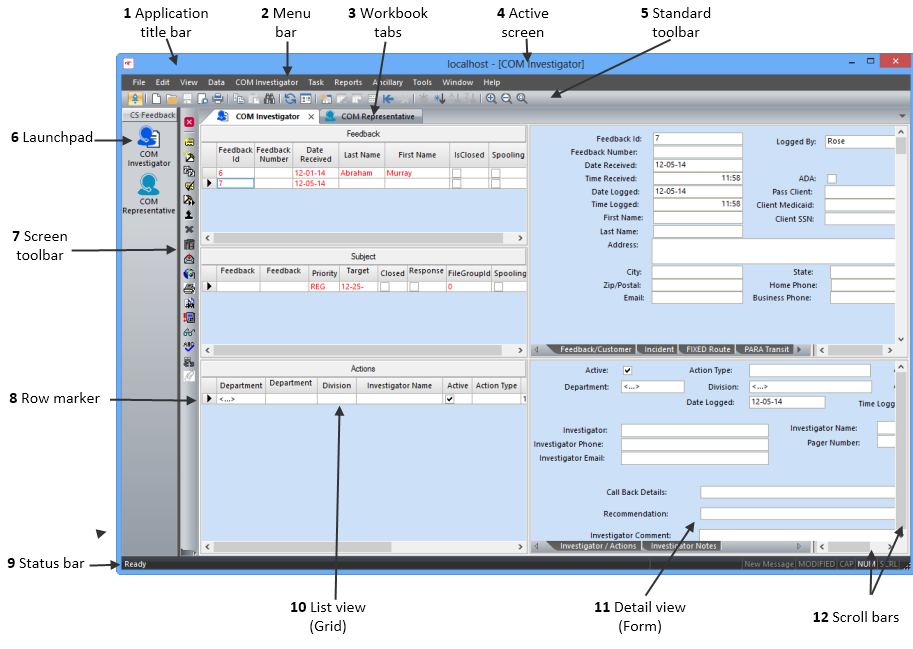
The following table shows the basic components of the Trapeze COM workspace (as marked in the
graphic):
| # | Component | Description |
|---|---|---|
| 1 | Application title bar | Shows the name of the application and screen currently in use. |
| 2 | Menu bar | Typically, contains ten headers: File, Edit, View, Data, Tasks, Reports, Ancillary, Tools, Window, and Help. The content of the Menu bar cannot be altered. |
| 3 | Workbook tabs | Indicate the screens that are open and which you can access. |
| 4 | Active screen | Screen that is currently open. |
| 5 | Standard toolbar | Some general functions available in Trapeze6 are displayed as icons in the Standard toolbar. All toolbars except the menu bar can be customized. |
| 6 | Launchpad | Opens a pane, which is usually located on the left section of the screen, where you can place modules or extensions for easy access. |
| 7 | Screen toolbar | Contains the actions applicable to your active screen. |
| 8 | Row marker | Arrow that appears in the marker column (first column on the left of the table). It indicates the record that is currently selected. |
| 9 | Status bar | Indicates the state of the function currently applied on the active screen. |
| 10 | List view (Grid) | Appears in a spreadsheet format that is within most Trapeze screens. It consists of columns (fields) and rows (records). |
| 11 | Detail view (Form) | Shows details of each record arranged in a format similar to that of a printed form. |
| 12 | Scroll bars | Allows you to navigate records horizontally or vertically within screens. |