
Linking OPS Incidents to COM Feedback
Incident reports that have been created in OPS can be linked to feedback records in COM. There may be details in the OPS incident reports that are relevant to a feedback record and can be helpful to whoever is investigating the feedback.
- In the COM Investigator screen, click the feedback record to which you want to link an OPS incident.
-
On the screen toolbar, click the OPS Incident button:
 .
The OPS Incident dialog appears.
.
The OPS Incident dialog appears. -
Click Look Up.
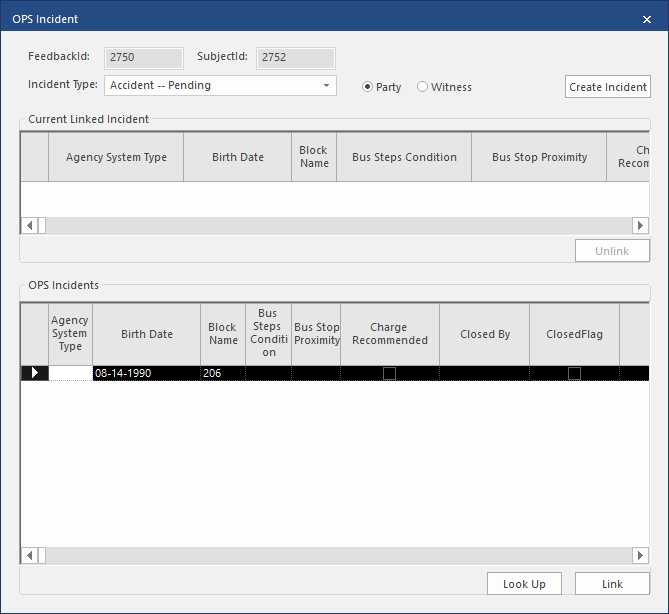
The OPS Incidents pane shows a list of incidents that may be applicable to the feedback record. The following graphic shows an example of an OPS incident record:
-
Click the incident you want to link and click Link.
A message prompts you to confirm that you want to link the selected incident to the current subject.
-
Click Yes.
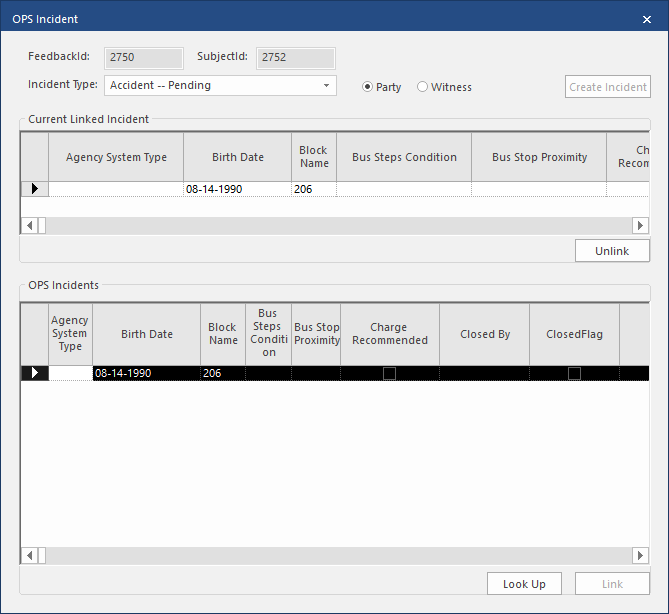
The selected incident is shown in the Current Linked Incident pane. The following graphic shows a sample OPS incident in the Current Linked Incident pane:
If the OPS Incident report is unable to link to the COM feedback record, an error message appears.
- Optional: To remove an incident from the pane, click Unlink.