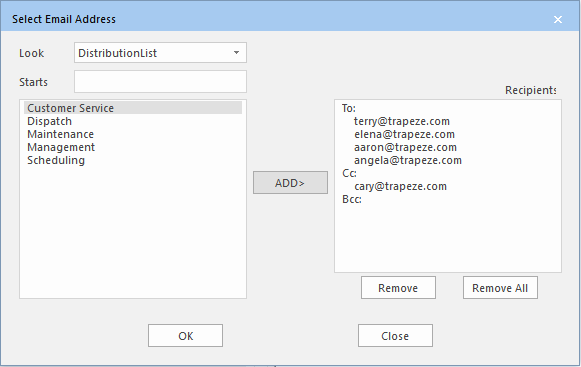
Selecting Groups from Distribution List
Instead of entering individual email addresses, you can choose individuals or groups of individuals from investigator or distribution lists.
-
In the Send Email dialog, click the ellipsis button beside the
To field:
 .
The Select Email Address dialog appears.
.
The Select Email Address dialog appears. - In the Look in drop-down list, choose Distribution List.
- In the left field, choose a distribution group (for example, Marketing).
-
Click ADD>.
Addresses defined for the group appear in the To, Cc, and Bcc categories in the Recipients field.
- Optional: To remove a specific recipient, highlight the address in the Recipients field and click Remove.
-
Click OK.
The Send Email dialog shows the recipients of the selected group.