
Creating Step Sets
Create step sets for situations that may typically take some time to produce itinerary results.
-
Select the Step Set Name parameter in the main parameter list.
The Value list contains all the existing step sets as well as the values, None and New.
- Select New. A new step set is created containing one step. No parameters are associated with it at this point.
-
To include a parameter in the step section, (for example, the minimum number of transfers), move it from the generic parameter set to the step set. Double-click the marker column of the corresponding row in the regular parameter list.
A new row is created in the step set grid with the value from the generic parameter set. The line in the generic parameter set turns gray indicating that the step values set takes precedence.
- To create another step, select a step and click Add Step. Type the new value.
-
To indicate that the step is mandatory, select the check box in the step column header.
Select the check box again.
The check mark appears gray which means that the step is performed only if the previous mandatory step or steps are performed without success.
- Clear the check box to indicate that the step is to be performed only when the Find More Itineraries command is selected on the Detail tab.
-
To save the set, click the Save button:
 The Save Steps As dialog opens.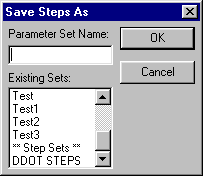
- In the Parameter Set Name field, type the name of the step and click OK.
Use the Save As command to make a copy of an existing step set. You can edit the copy to make changes, and test the results.