
Logging on to DriverMate
To access DriverMate, sign in with the appropriate login information.
About this task
Typically, the Mobile Unit Id field is automatically filled in and locked when you open the application. There may be some variations in your logging procedure. depending on your agency's requirements, for example, some fields that are not automatically filled in when the screen is shown may be optional.
Procedure
-
Open
DriverMate.
The Login screen appears. The following graphic shows a sample Login screen:
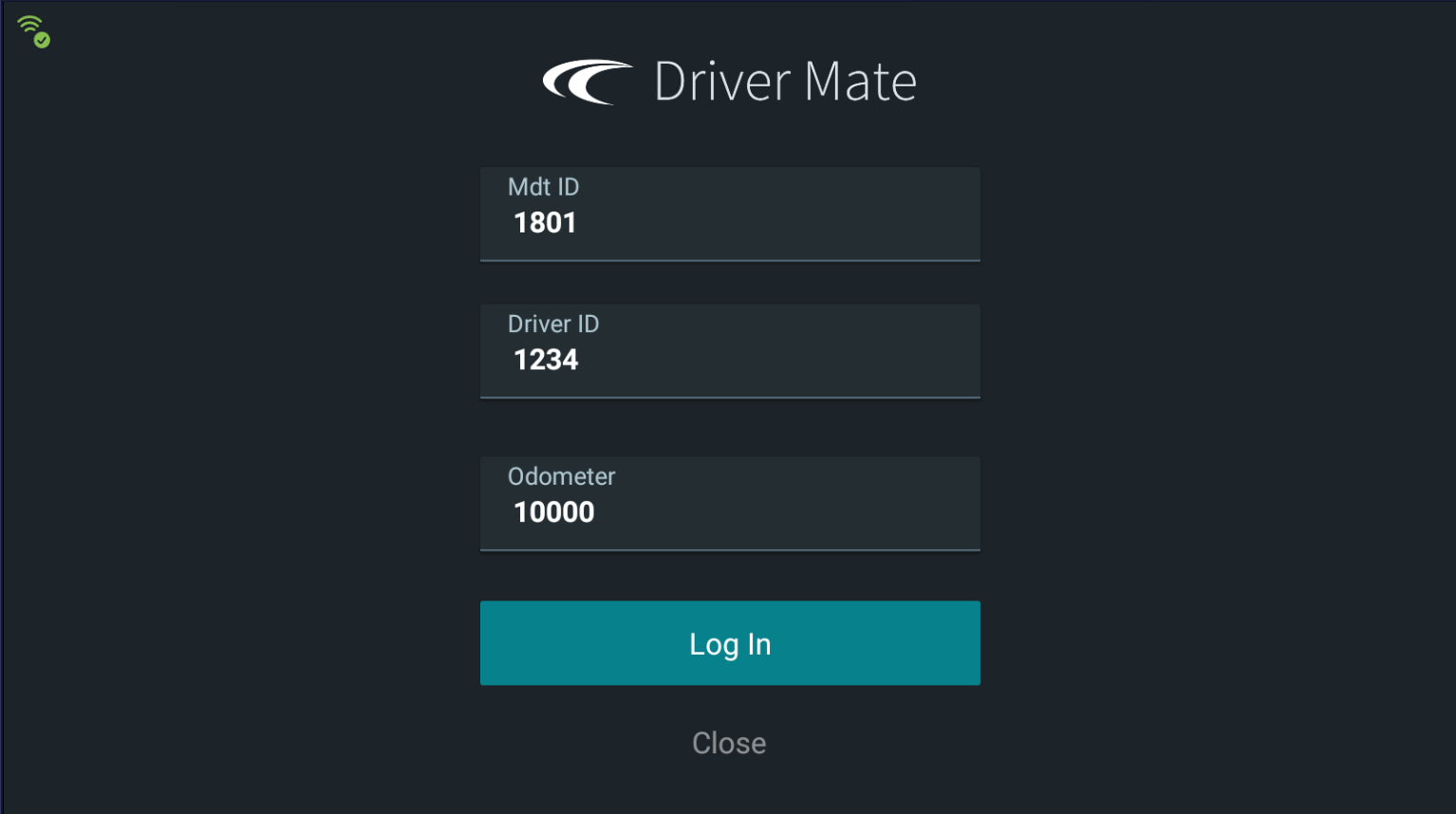
- In the Driver Id field, enter your driver identification number.
-
In the Pin field, enter your personal identification
number.
This number may or may not be required by your agency for authentication.
- In the Run field, enter the name of the run you are performing.
- In the Odometer field, enter the current odometer reading.
-
Tap Login.
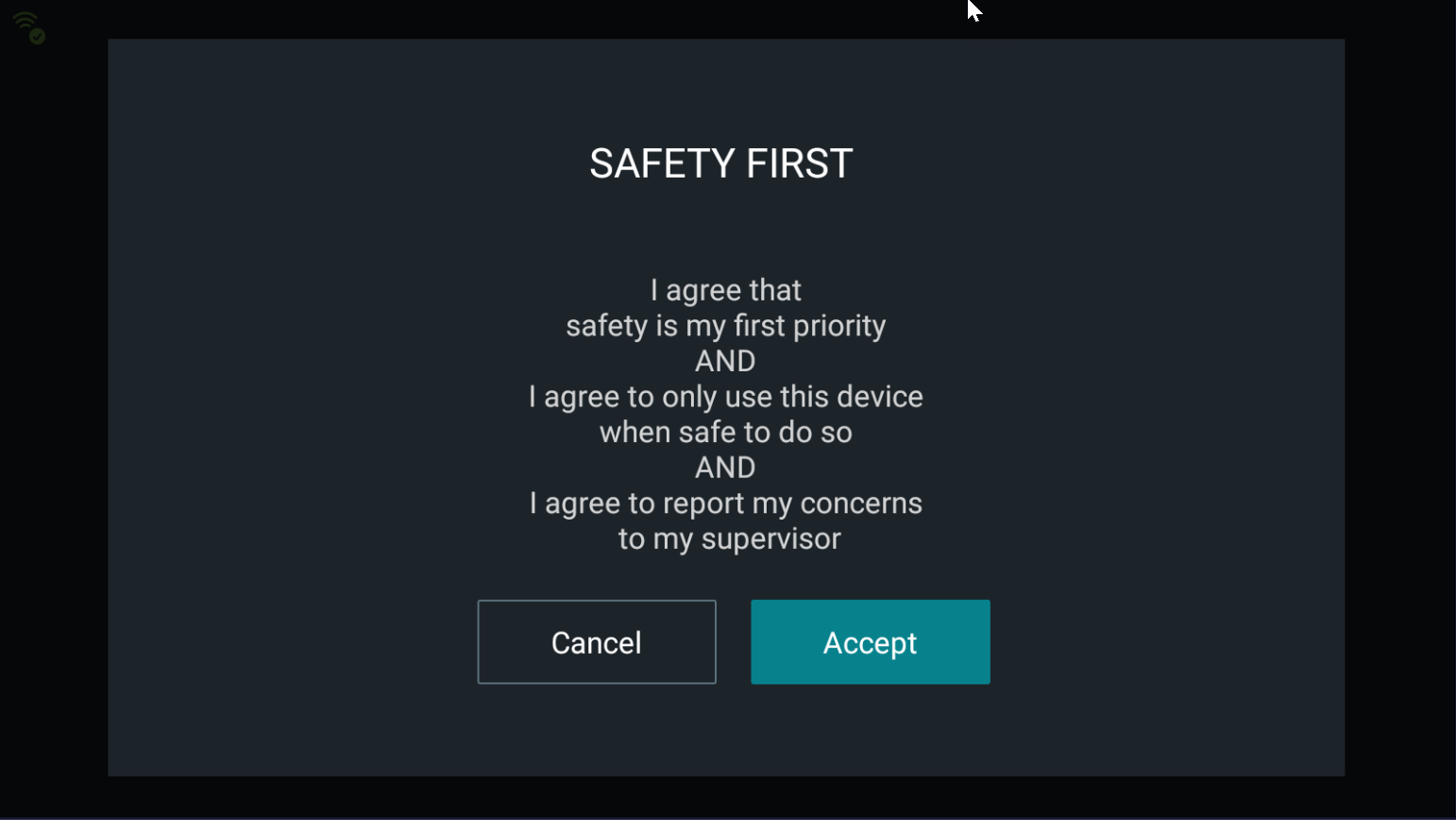
A safety message is displayed. The following graphic shows a sample message:
-
Tap Accept if you can operate the application safely. If
not, tap Cancel.
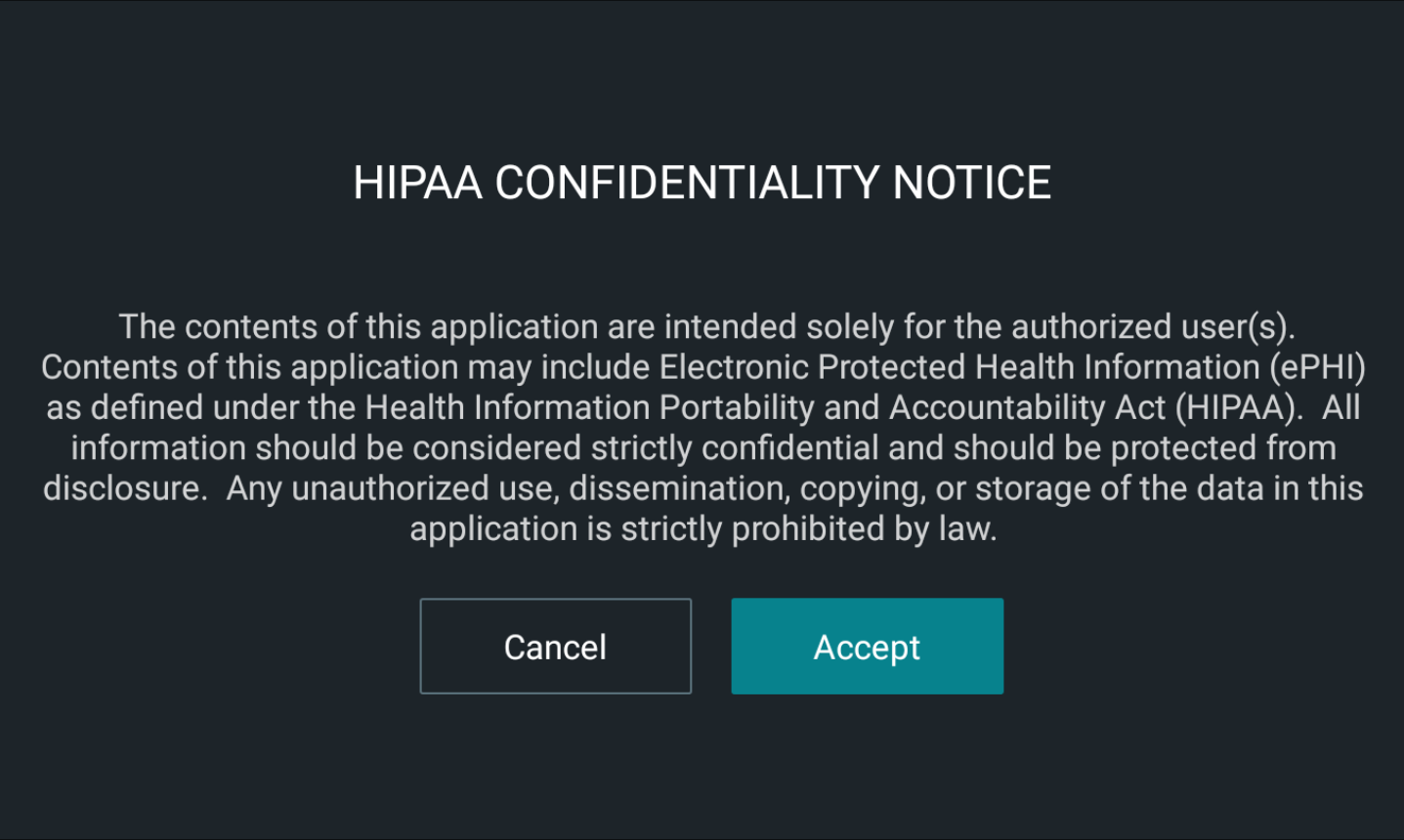
Note:If you cancel the request, you are sent back to the Login screen.A message on your agency's policy on privacy and confidentiality appears. The following graphic shows a sample message:
-
Review the message and tap Accept.
A login message indicates that the system is establishing communication. Your schedule of events or the manifest is shown.
If login fails, a message explaining the reason for the failure appears and you are returned to the Login screen.