Finding Networked Drives When Using Windows 10

Systems running on Windows 10 may not see networked drives when using PASS.

About this task
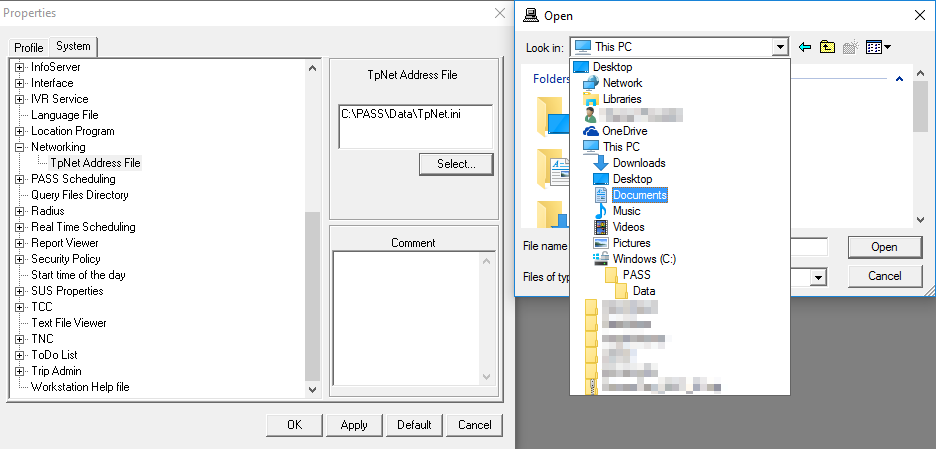
If you need to connect to a networked drive from and you do not see any networked drives listed, you may need to update the registry.
The Properties dialog box for system properties open to the System tab with the TpNet Address File property selected. Select has been clicked and the Open dialog box shows a list of Look in options.

Procedure

  1. Open regedit.exe.
    Typically, you will find regedit.exe in C:\Windows.
  2. Click HKEY_LOCAL_MACHINE > SOFTWARE > Microsoft > Windows > CurrentVersion > Policies > System.
    In the right pane, you will see ConsentPromptBehaviorAdmin and other keys.
  3. Right-click in the white space, and click New > DWORD (32-Bit Value).
    New Value #1 appears.
  4. Name the new key EnableLinkedConnections.
  5. Double-click EnabledLinkedConnections.
    The Edit DWORD (32-bit) Value dialog box appears.
  6. In the Value data field, type 1.
  7. Click OK.
  8. Restart the system.

Results

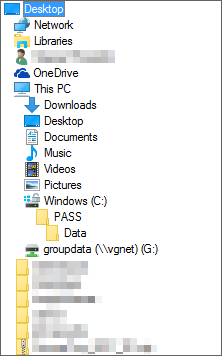
Network drives are now available on the Look In list in the Open dialog box.
The Look in list in the Open dialog box.