
About Runs
Runs allows you to create and manage master runs, template runs, and daily runs.
Run Terminology
Specific terms are used frequently in connection to runs in the system’s operations.
- Trip
- A passenger’s journey from a pick-up to a drop-off.
- Route
- The path taken by a vehicle to get from a starting point to a destination point.
- Run
- An allotment of events assigned to a vehicle to be completed within a given day. A run event can be a pick-up, drop-off, pull-in, pull-out, refueling stop, driver lunch, break, or relief.
Master Runs
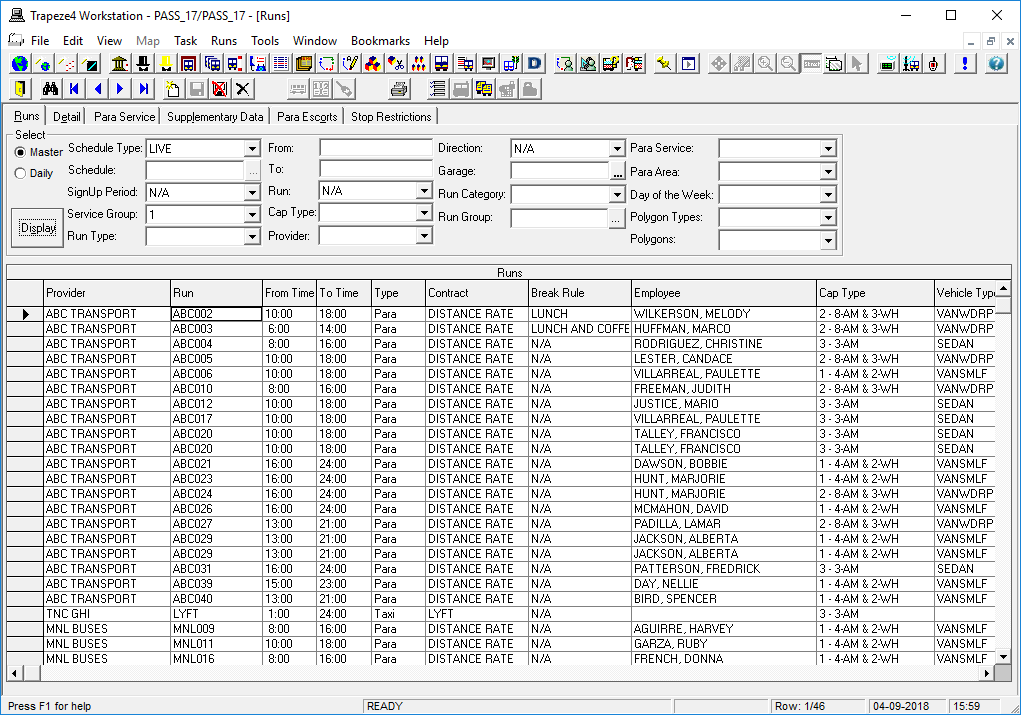
Master runs, like subscription bookings, are inactive. No trips can be scheduled to master runs.Once you have created a master run, you can make template and live copies of the master run. This allows you to make the run active.
In Runs, look at your existing master runs. Select the Master check box and click Display. Like subscription bookings, master runs are activated on repeated yearly, monthly, or weekly intervals.
Master runs are used continuously (up to a specified date) unless overridden by the Daily run file.
Template Runs
Template runs are copies of master runs.
Template trips are scheduled to template runs. Therefore, template runs should be made available before you accept subscription bookings. Building and using template runs ensures efficient and reliable schedules. Once you have created a master run, you can create a template run for each week day on which the master run is intended to operate.
To view template runs for a specific week day, select the Daily option, click the ellipsis button (…) in the Schedule field, choose the Template day (for example, Template Tuesday), and click Display. Runs shows all template runs for the template day you select.
Daily Runs
Daily runs are also copies of master runs.Daily runs are created to operate for a specific live date only. The Schedule Server creates live schedules automatically every day at midnight. With every live schedule the system makes a copy of every master run file that occurs on that weekday. For example, when the live schedule for Friday, October 14, 2020 is created, all master runs occurring on Friday are activated to the daily run list for that date. The Schedule Server activates master runs to the daily run list once a day. However, if you have just created a new master run and you wish it to be activated for the current live schedule that has already been loaded, then you must manually activate the master run to the daily run list.
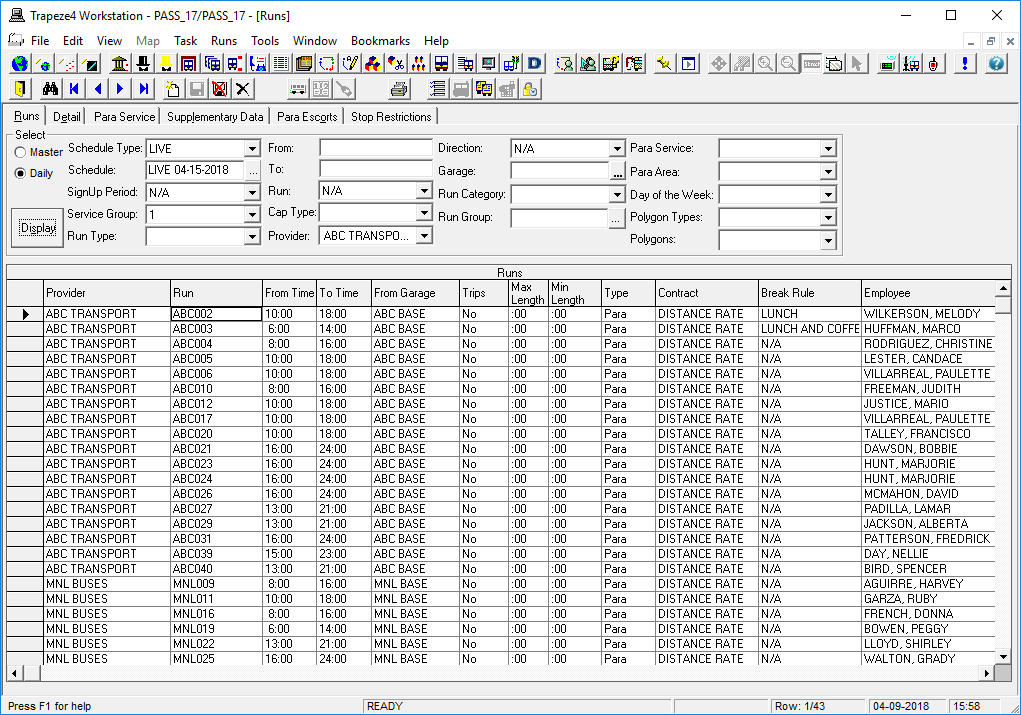
To view runs for a specific date, select the Daily option, click the ellipsis button (…) in the Schedule field, choose a live date (for example, Live 07-11-2020), and click Display. All runs for this date are shown on the grid. Changes you make to the daily runs do NOT affect master or template runs. You can also add a run to the Daily Run list. For example, if you have an exceptionally busy day of service, you can create a daily run and add an extra run to accommodate the demand for service.