
What's New In Version 19
Features found in PASS v19 that have been added after the initial release of PASS v18.
Items with a * were introduced (partly or in whole) in maintenance releases of previous versions.
General
- Previously, Max OBT Factors could only be accessed through the Schedule Administrator, now it is available in the workstation, under .
- Trapeze Messenger can no longer be accessed in the Tools menu.
- Previously, Geocoded results could only be reviewed in the Batch Geocoder tool. Now, for more flexibility, Geocoded results are also outputed to a separate file with the format: BatchGeocodeResult_yyyymmdd_hhmmss.txt.
- In Polygon Definition, the Copy Polygon dialog box now has a select all function, which allows you to select all Polygons for a Polygon Type.
- Disability Type and Mobility Aids are now displayed in the following PASS screens:
- Trip Administrator
- Schedule Editor
- Schedule Booking Wizard *
- Workstation can now reload properties without restarting. Previously, whenever system or profile proporties were changed, the workstation required a restart for changes to take effect.
- Trapeze Report Wizard () can now show user-defined schedule statuses that are enabled. *
- In Dispatch Manager, Dispatchers can now view pre and post-shift check-list forms that were created in DriverMate and Ranger. A CheckList Results dialog will display checklist responses, as well as, forward checklists to the appropriate agency personnel. CheckList Results dialog can also be opened from Dispatching, Dispatch Center, and Schedule Editor.
- In Bus Stops, you can now save time and efficiently apply changes to stops for different
bookings with Stop Change Wizard. *
To make changes to stops with the Stop Change Wizard:
- Click .
- In menu ribbon, click the
 icon to open the Stop Change Wizard dialog box.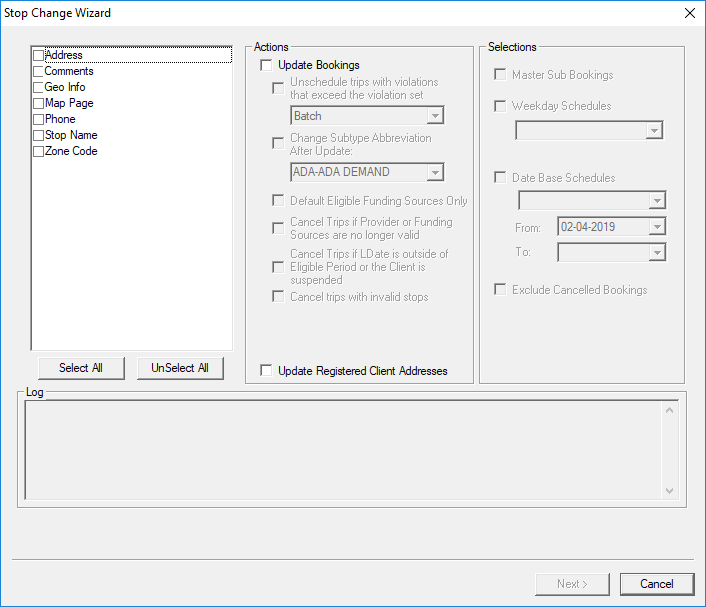
The Stop Change Wizard allows you to update the following information related to a Stop:- Address
- Comments
- Geocode Info
- Map Page
- Phone
- Stop name
- Zone Code
In the Actions and Selections pane, you can update the bookings that are related to the stop.
Context Properties
- context property was removed. *
- The following EZ-Wallet context properties set thresholds for Transport Unit purchases
and balances:
- . The maximum quantity of tickets allowed. *
- . The maximum quantity of tickets that can be purchased. *
- . The minimum quantity of tickets that can be purchased. *
- The following PassInfoServer context properties have been added:
- . This context property specifies the number of failures an auto top-up rule can have until it is temporarily disabled for the day. *PASS-17034
- . This context property specifies the number of failing days an auto top-up rule can have until it is indefinitely disabled. A failing day is when the the number of failures within a day exceeds the value set in AutoTopUpDailyRetryLimit. The auto top-up rule remains disabled until it is enabled by the user. *PASS-17034
- . If selected, this context property enables email notifications to clients that autotop up has been disabled due to a credit card failing the allowed attempts. *PASS-17172
- . This context property allows you to have mandatory inputs in the table for PassCreateClient method. *PASS-16549
-
. If selected, the logged-on client cannot create a booking on days for which will are to be suspended. If cleared, the logged-on client can create bookings on days for which they are to be suspended. The check box is cleared by default. *
System Properties
- The following properties have been moved from TP6 to TP4:
- is now found in , on the Profile tab, under .
- is now found in , on the Profile tab, under
- is now found in , on the Profile tab, under .
- is now found in , on the Profile tab, under .
Web and IVR passwords can no longer be manually updated in Workstation. They can only be auto-generated. *
- The following PASS Scheduling system properties were created:
- for fixed portions of scheduling solutions. (Applies to PASS-IPA and Bus Stop Restriction runs.) If set to Yes, no violations are applied to the fixed route portion of multimodal trips. (Note that, currently, TL (Transfer Late) violations may still appear on Fixed Route portions of trips.) *
- . Bus Stop search radius defines the search radius for accessible bus stops by checking for bus stops around a pick-up and drop-off point. This system property supports the Multimodal Scheduling / Approved Bus Stops feature, which finds fixed route scheduling solutions with bus stops that are deemed accessible for a client's space type. *
- . (Applies to PASS-IPA and Bus Stop Restriction runs.) If set to Yes, no violations are applied to the fixed route portion of multimodal trips. (Note that, currently, TL (Transfer Late) violations may still appear on Fixed Route portions of trips.) *
Ancillary Data
- . Paraservice Types can now be marked as inactive, this will make them not
appear in the following screens:
- Paraservice Area Rules
- Trip Selection
- SchMultiParams
- Polygon Attributes
- Max OBT Factors
- ParaServiceLoad
- ServiceLine
- Clients
- ParaRuns
- ScheduleEditor
- Trip Administrator
- School Web Import
- PSA Response
- Para Master Line
However, an inactive paraservice type is still selectable within a current session. This allows you the opportunity to keep the inactive paraservice type in case you want to change it back to an active type. When a current record is linked to an inactive paraservice type, an astericks (*) will appear beside it. The inactive paraservice type will disappear once you have updated the record, closed the screen, and opened it again.
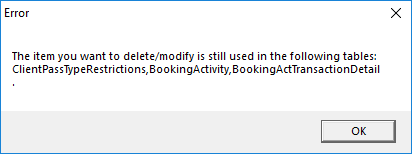
- An Error pop-up now appears if you are trying to delete an Ancillary Type that is in
use. The pop-up also notifies you of the different data that is applied to the Ancillary
Type.PASS-16228
- In , you can now sort the Type column into a numerical order.
- Specific payment type abbreviations (Abbr) cannot be used when creating ancillary data (). These values are used within the system and user-defined payment types with these abbreviations could have negative affects. The invalid abbreviations are CP, CAS, CRC, DEB, CHQ, WTR, ACC, INP, EZW, and IPP.
- Paraservice Area Rules ancillary data found in has been updated. Now, the ParaService Area Rules
dialog box contains four tabs:
- Area Travel Rules: Allows system administrators to define Weekdays, From and To polygons, and a Description for each area travel rule associated with the selected ParaService. Multiple rules can be defined for each paraservice type.
- Service Parameter Rules: Allows system administrators to define rules for each selected ParaService and define whether the rule applies to PASS WEB or the PASS Workstation. These rules are applied at the paraservice level.
- Default Values: Allows system administrators to define default values for Booking Subtype Abbreviation and Scheduling Action for each selected ParaService. These values are applied at the paraservice level.
- Passenger Type Rule: Allows system administrators to define the maximum number of each passenger type that can be included in trips for each selected ParaService, and whether the passenger count applies to PASS WEB or the PASS Workstation. These rules are applied at the paraservice level.
Note that the ParaService option N/A allows you to view area travel rules for all paraservice types. You cannot save any ancillary data for the N/A ParaService option. *
In , there are now two methods for refunding transportation units: Use average price and Use defined value.
Use average price is the default. If applied, the average transportation unit price for the most recent purchase (for example, of a defined ticket package) is used. If the number of transportation units refunded exceeds the number purchased in the last transaction, then the system calculates the average for transportation units from the previous purchase, and so on, until the total number of transportation units needing to be refunded is reached. If the new refund option, Use defined value, is applied, each transportation unit is refunded at the defined Value. *- Space types can now be associated with accessibility types. This update relates to the Multimodal Scheduling with Approved Bus Stops feature. The feature allows you to restrict clients to bus stops accessible for their space types when creating a Multimodal Schedule solution. To define accessibility types for space types, accessibility types (under ) must be defined. In , add a new space type or Edit an existing space type. In the Accessibility field, select the Accessibility type to be associated with the Space Type. *
-
Paraservice logos can now be viewed in Trapeze6 applications (such as PASS-Web).
To associate a logo with a paraservice, click . Define a paraservice abbreviation (Abbr), Description, and image file to be used as the Logo (for use with PASS-Web, Trapeze recommends an SVG file type with an image ratio of 1:1; the image will be displayed in PASS-Web as 80x80). Click Save.
Scheduling
- Multimodal Scheduling with Approved Bus Stops is now supported.
When creating a multimodal scheduling solution, you will be able to define a list of accessible bus stops for clients that require particular space types. You can tag Bus Stops by linking an accessibility type to a space type, and when the PASS system requests an FX solution, PASS will only utilize an FX solution containing bus stops that are deemed accessible to clients. *
- When using the Subscription Change Wizard Auto Schedule Scheduling Action, the system now schedules trips to the best possible solution (lowest cost solution) available. Previously, the system tried to reschedule them to the same run and left them unscheduled if it couldn't schedule them to the same run within the allowed violation set. *
Schedule Editor
- You can now ease the reading of BSR (bus stop restriction) runs with the Hide Ignored Events checkbox. This will flag all ignored events (typically BSR stops with no time) and hide them. *
- PDF Manifests can now be created in Schedule Editor for currently selected runs. This will help save time in case an MDT goes down and a manifest for a run needs to be printed quickly. Dispatch can quickly generate the manifest without having to open Trapeze reports.
- You can now perform batch scheduling in the Schedule Editor.
- You can now view the Fare Summary dialog box for bookings in Schedule Editor (.)
Schedule Server
- Schedule Server can now reload properties. Previously, whenever system or profile proporties were changed in the Workstation, the Schedule Server would need to be restarted for changes to take effect.
Trip Booking
- The client's transportation unit balances are now seen in the Fare Summary dialog box. Transportation unit abbreviations seen in the Fare Summary dialog box are defined in as Abbr (Purchase rules must be defined for transportation unit payment types). Clients must have purchased transportation units to see a transportation unit balance in the Fare Summary dialog box.
Trip Administration
- Now, when you select one or multiple trips in Trip Administration, and then open Trip exclusion, the selected trips will be automatically displayed on the Trip exclusion grid.