
Adding and Editing Date Interval Rules
When you must add or edit rules for a subscription booking, you can do so directly from Trip Administration without having to open the original booking in Trip Booking.
Before you begin
Procedure
- In the Client field, search for and select the client.
- In the Sch Type list, click All.
- Select the Sub check box.
- Click Display.
-
Click the Schedule field of the subscription booking.
A drop-down arrow appears to the right of the field.
-
Click the drop-down arrow.
The Date Intervals dialog box appears.
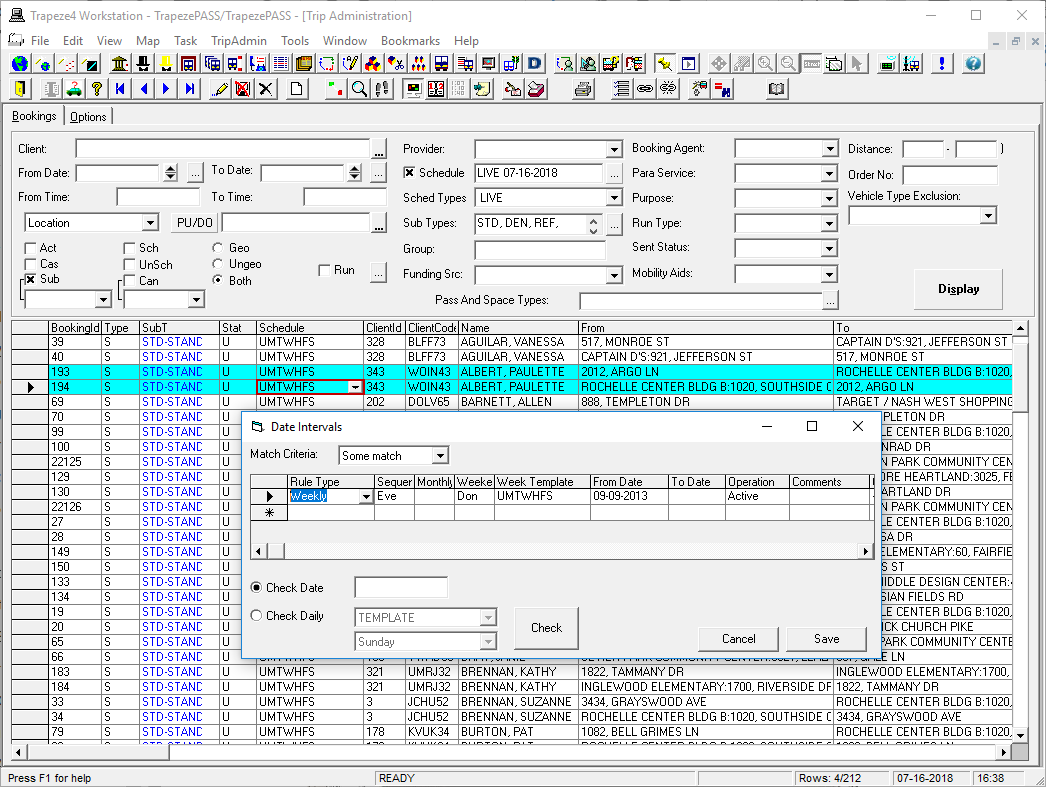
In the above image, the Schedule field shows the weekly rule for the booking: 0101110. Each digit represents a day of the week: 1 represents a day when it is activated, 0 represents a day when it is not. An asterisk (*) in the Schedule field indicates that there is more than one weekly rule for the booking (as in this example) and the field only shows the first weekly rule. For subscription bookings with rule types other than Weekly, the Schedule field is blank.
How the week template appears is defined in , on the Formats tab, under Weekdays. This setting should apply to all week templates for the current user in the Trapeze4 Workstation.