The Subscription Change Wizard automates the process of updating a subscription once it has been edited.
Before you begin
The Schedule Type - Active Live property
must be set to Live and the Schedule Type - Active
Template property must be set to Template. These
properties are found in , on the Profile tab, under PASS
Scheduling.Trip Administration must be open.
Procedure
-
In the Client field, type the client’s name.
Or, you can type a forward slash (/) followed by the ID number (for example, /2105)
of the client whose subscription you are editing.
-
Select only the Sub check box.
-
Click Display.
-
Highlight the master record.
If you have two master records (that is, a trip and a return trip), highlight the
first master record.
-
Click the Edit button:

The original subscription booking is shown in Trip Booking.
-
Make the necessary changes to the booking, and then save the
Save button:

The Subscription Change Wizard automates both the removal of old template and live
records and the activation of new template and live bookings in a single operation after a
subscription has been edited.
-
Click the Subscription Change Wizard button:

The
Subscription Change Wizard dialog box appears.
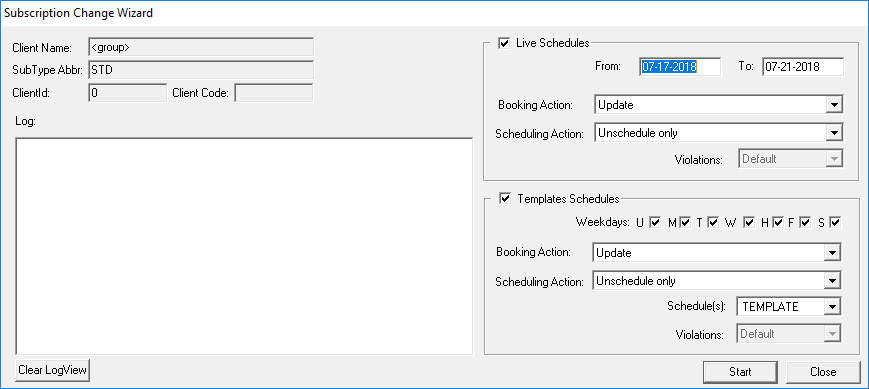
By default, both
Live Schedules and
Template
Schedules are selected.
-
In the Live Schedules frame, provide information for any live
schedules that need updating:
-
Select the Live Schedules check box to indicate that trips
on live schedules should be updated.
Leaving this check box clear means that live schedules will not be
affected.
-
Using the From and To fields, specify
the date range of the subscription changes to modify.
If the change to the subscription booking applies to all future bookings, leave
the
To field blank.
By default, the
From and To fields are populated one
day ahead of the live schedule window defined in Schedule Administrator.
For
example, if the schedule window activates nine days from the current date (for
example, 06-09-2020 to 14-09-2020), the
From field shows tomorrow’s date (07-09-2020) and the To field shows the date
following the last loaded live schedule (15-09-2020).
If the From date has already passed, a The
from date has passed already. Do you wish to proceed? message appears. Click
Yes to continue, or click No to close
the dialog box and change the From date to today's date or
later.
-
Click a Booking Action in the list:
- Update
- Update information for the trips that have been scheduled during the defined
period of time.
- Remove
- Remove the trips that have been scheduled during the defined period of
time.
- Suspend
- Suspend the trips during the defined period of time.
- Within the From/To date range, new live bookings
are simultaneously activated and canceled with the CA (Advance Cancel)
status.
- Outside of the From/To date range (for example,
activated from 09-07-2020 to 09-15-2020 but suspended on 09-16-2020), a
new live booking is not activated but the original live booking is canceled
(CA).
-
Click a Scheduling Action in the list:
- Unschedule
- Unschedule all trips in the defined time period on the selected days of the
week and update their information, but do not reschedule these trips.
- Unschedule and Launch schedule booking wizard
- Save the updated run information for the scheduled trips, unschedule them,
update the trips' information, and then open the Schedule Booking Wizard to
schedule the trips during the defined time period on the selected days of the
week.
- Unschedule and Auto Schedule within violation set
- Update the trips' information, and then reschedule the trips using the
Schedule Booking Wizard during the defined time period, even if there are
violations.
When using Auto Schedule within violation
set, the system only reschedules scheduled trips, it does not
schedule unscheduled trips. Rescheduled trips are scheduled to the original
run.
- Maintain current scheduling position
- Update or refresh the trips that are currently scheduled.
-
In the Violations field, click a violation set in the
list.
-
In the Templates Schedules frame, provide information for any
templates that need updating:
-
Select the Template Schedules check box to indicate that
trips on live schedules should be updated.
Leaving this check box clear means that live schedules will not be
affected.
-
For the Weekdays check boxes, make sure the correct days of
the week for which live and template bookings are to be activated are selected.
By default, all weekday check boxes are selected.
Weekday templates are only
created for subscription bookings that have a weekly interval rule where specific
days of the week are defined. Any existing templates for days of the week not
selected in the subscription booking (in Date Intervals) are
deleted.
For subscription bookings with other rules (for example, daily or
monthly by date), no template bookings are activated even when you perform this
step.
-
Click a Booking Action in the list:
- Update
- Update information for the trips that have been scheduled during the defined
period of time.
- Remove
- Remove the trips that have been scheduled during the defined period of
time.
-
Click a Scheduling Action in the list:
- Unschedule
- Unschedule all trips in the defined time period on the selected days of the
week and update their information, but do not reschedule these trips.
- Unschedule and Launch schedule booking wizard
- Save the updated run information for the scheduled trips, unschedule them,
update the trips' information, and then open the Schedule Booking Wizard to
schedule the trips during the defined time period on the selected days of the
week.
- Unschedule and Auto Schedule within violation set
- Update the trips' information, and then reschedule the trips using the
Schedule Booking Wizard during the defined time period, even if there are
violations.
- Maintain current scheduling position
- Update or refresh the trips that are currently scheduled.
-
In the Schedule(s) field, select whether to apply these
changes to Template or Live schedules.
-
In the Violations field, click a violation set in the
list.
-
Click Start.
The system begins updating the subscription and you can monitor its progress in
the Log frame.
-
After the bookings are scheduled, click Close.
-
In Trip Administration, press F5.
The screen is refreshed and the new subscription trips (master record,
templates, and live records) are shown.
