
About the Scheduling System
PASS contains a powerful scheduling system that, when requested, produces scheduling solutions for all of your bookings.
In single-insert scheduling the system generates a number of run solutions for one trip and the user selects the run solution for the trip. Batch scheduling is an automated process where the Schedule Server considers all trips within a schedule, searches for solutions, and schedules them to runs. The single-insert method gives you greater control over the scheduling process but you also have more responsibility in the maintenance of schedules.
Before you begin any scheduling activity, learn about requested pick-up and drop-off times. Understanding how these times work together and affect the system is key to maintaining schedules.
Requested Pick-Up and Drop-Off Times
Request times (in Trip Booking) are helpful for understanding trip pick-up times and drop-off times.
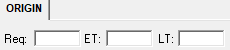
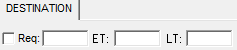
The client must request a pick-up time or a drop-off time, but not both.
| Event | REQ | ET | LT |
|---|---|---|---|
| Origin/Pick-up | Time the client requests to be picked up | Earliest time the client wants to be picked up | Latest time the client wants to be picked up |
| Destination/Drop-off | Time the client requests to be dropped off | Earliest time the client wants to be dropped off | Latest time the client wants to be dropped off |
Early and Late Times
Specifying early times (ET) and late times (LT) is optional. Using early and late requested times can restrict the scheduling algorithm and should only be used when necessary. When a client has strict conditions concerning their pick-up or drop-off times, it is important to specify the appropriate early and late times in the booking. When the booking is scheduled, the system will find scheduling solutions that satisfy all of the time-related conditions that have been set.
- Mrs. Brown has an appointment at her doctor’s office at 14:00, so the drop-off can be
no later than that time.
On the Destination tab, type 14:00 in both the (REQ) and the (LT) fields.
- Robin finishes work at 17:00 but the doors at his workplace close at 18:00.
Because he cannot leave work until 17:00 and cannot stay at the workplace past 18:00, set the (REQ) and (ET) pick-up times on the Origin tab at 17:00 and the (LT) at 18:00.
- Susie’s first class of the day begins at 9:00 and she wants to be picked up by 8:00.
Her mother has to help her board the vehicle but must leave for work herself by 8:15.
On the Origin tab, set the (REQ) time at 8:00 and the (LT) at 8:15. On the Destination tab, type 9:00 as the latest (LT) she can be dropped off because that is the time that her class begins.
Omit early and late times in the original booking when pick-up and drop-off times are flexible.
When you schedule a booking using the Schedule Booking Wizard, you typically use the SearchW filter. This filter places time parameters for the search for solutions.
The SearchW time frame is determined by the Early Win and Late Win values defined in the Solution Parameters dialog box (found under ).
For example, the Early Win is set at 1h00 and the Late Win set at 1h00. Using the SearchW filter for a booking with a requested 12:00 pick-up, the system looks for solutions that place the pick-up no earlier than 11:00 and no later than 13:00.
Using Drop-Off Times
When batch scheduling trips with requested drop-off times, you may encounter difficulties with schedules.
During a batch schedule, system users do not negotiate (try to have the client accept a run solution) a time with each client. For bookings with pick-up times this is not a problem since you can inform the client, approximately, when to expect the vehicle: the system imposes a tolerance window which the Schedule Server considers when scheduling.
For example, the client requests a pick-up at 10:00. The Tolerance: Pick-up Early and Late are 15 minutes each. The reservationist can tell the client to expect the vehicle some time between 9:45 and 10:15.
However, with a booking that uses a drop-off request time, you cannot give the client a pick-up time until the booking is scheduled. For example, in the first example, Mrs. Brown requested a drop-off time but she still needs to know when she is to be picked up.
- Avoid using drop-off times altogether. Place the Requested
pick-up time one hour before the drop-off time (for example, 13:00) on the
Origin tab of Trip Booking. (One hour is usually ample time for
the completion of any trip.)
Then, type 14:00 in the LT field on the Destination tab. When you schedule this booking, the system only looks for solutions that place the pick-up at a time that guarantees Mrs. Brown a drop-off at her destination before or at 14:00.
- On the Destination tab of Trip Booking, type the times as
listed above with the Req drop-off time at 14:00 and the
LT also at 14:00.
Then, schedule the booking manually. Run solutions in the Schedule Booking Wizard display both the scheduled drop-off time and the pick-up time. This method enables you to negotiate a schedule and inform the client of the pick-up time.
It is important that you specify an LT in the original booking if you do not have flexible drop-off times. When you do so, the system only produces solutions that place Mrs. Brown’s drop-off at or before 14:00.
Apply the Act Req DO (Activate Requested Drop-Off) logic.
Ensure that the Act Req DO property in Trip Booking is set to Yes.
The system calculates the pick-up time if a drop-off time is typed into the Req field in the Destination tab of Trip Booking.
Schedule Times
Once a booking is scheduled, it is given a schedule time (ST). Whether the booking has a requested pick-up or drop-off time, the scheduled time always refers to the time of pick-up.
Different variables, such as weather, traffic flow, and miscellaneous incidents, can prevent vehicles from meeting exact scheduled times. To avoid incurring a violation every time a vehicle picks up or drops off a client a few minutes before or after the schedule time, the system places a time frame around the schedule time.
Click and, on the Profile tab, click PASS Scheduling. Scroll down to the Tolerance properties. While violations exist to ensure reasonable service for the client, Tolerance properties allows the vehicle some leeway in meeting schedules.
- Tolerance - Pickup Early time
- Tolerance - Pickup Late time
- Tolerance - Dropoff Early time
- Tolerance - Dropoff Late time
- Tolerance - Apply to Dropoff
If the Tolerance - Apply to Dropoff is set to Yes, then the early/late tolerances apply. If set to No, the drop-off tolerances are ignored.
For example, a booking is scheduled for pick-up at 9:00. The Tolerance - Pickup Early is 15 minutes and the Tolerance - Pickup Late is also 15 minutes. If no early/late times are specified, the vehicle can pick up the client any time from 8:45 to 9:15 without incurring a violation.
The following example shows a booking just after it has been scheduled to the first run solution in the list. The requested drop-off time was 14:00. Using the Destination Req check box, the system estimated an Origin Req of 12:00 and Destination ET of 13:15 and Destination LT of 14:00.
The schedule time (ST) of pick-up is 12:00. Tolerance - Dropoff Early is set to 15 minutes and Tolerance - Dropoff Late is set to 15 minutes. With the Tolerance - Pickup Early and Tolerance - Pickup Late set at 30 minutes each, the vehicle can pick up the client no earlier than 11:30 and no later than 12:30. (This is the time window you would tell the client to expect the vehicle to arrive.) If the vehicle arrives any time outside of this time frame, a violation occurs.
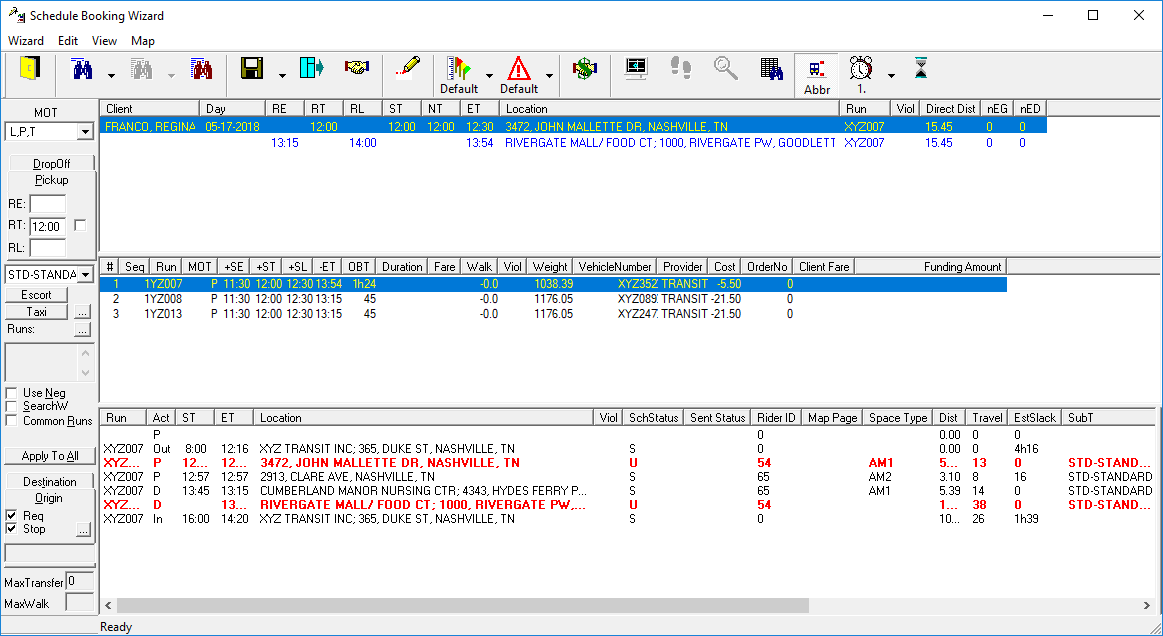
Click the Negotiate button if the solution is acceptable to the client. The negotiated times are populated with the schedule times (if they are different than the original schedule times).
For the example above, look at Sample Pick-Up Times and Sample Drop-off Times for a summary of the pick-up and drop-off times of the booking.
| Requested | Scheduled | Negotiated | |
|---|---|---|---|
| Time | 12:00 | 12:00 | 12:00 |
| Early | n/a | 11:30 | 11:30 |
| Late | n/a | 12:30 | 12:30 |
| Requested | Scheduled | Negotiated | |
|---|---|---|---|
| Time | n/a | n/a | n/a |
| Early | 13:15 | n/a | n/a |
| Late | 14:00 | n/a | n/a |
Negotiated Times
- Requested time is the time at which the client initially asks to be picked up or dropped off.
- Negotiated time is the time the client agrees to be picked up or dropped off.

The Client/Booking Info dialog box can also be accessed from the Trip Booking, Trip Administration, or Schedule Editor screens.
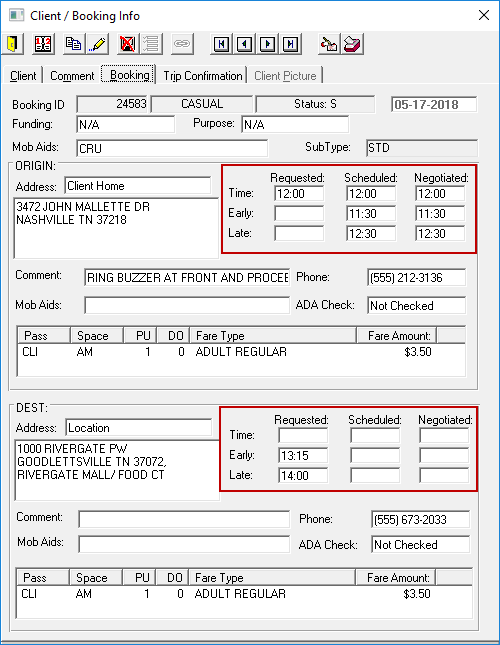
Before the booking is scheduled, the negotiated time is the same as the requested time for the booking (this is by default). The negotiated time changes if the client accepts a run solution whose schedule time differs from the requested time.
For example, a client with a 12:00 requested pick-up accepts a run solution whose scheduled time of pick-up is 12:15. Once this booking is scheduled the negotiated time becomes 12:15.
Negotiated Early and Late Times and Requested Early and Late Times?
While the Requested Early (RE) and Requested Late (RL) times are set by the client, the negotiated and schedule times are subject to the defined Tolerance system properties. The Tolerance properties determine the duration before and after the schedule time that the client can be picked up without incurring a violation. For example, if tolerance properties are all set to 15 minutes, and a 12:00 booking is scheduled for pick-up at 12:10, the tolerance window changes according to the new Negotiated time (Early: 11:55, Late: 12:25).
When the Schedule Time Doesn't Match the Negotiated Time
Sometimes a scheduler, in trying to create more efficient schedules, reschedules a trip that has already been scheduled. This does not mean that the negotiated time reflects this change. If you are going to reschedule a trip, you must always alert the client of the new scheduled time and then mark it as having been negotiated. Having the vehicle arrive at a time different from the negotiated time can result in missed trips and customer complaints. Once the trip is scheduled to a run, the schedule and negotiated times should never be different.
- Run a query, at the end of the day, to isolate all future trips with mismatching schedule times and negotiated times. Once you have located them, you can contact each client and renegotiate new schedule times. Consult a system administrator or Trapeze representative on how to run a query.
- Perform a batch schedule of ALL scheduled trips for a given day. Select the Reset Sch Times back to Neg Times check box in the Batch Parameters box. The system reschedules ALL trips using the negotiated times as the focus time.
When rescheduling a booking using the single-insert method, you can also select the Use Neg (Negotiated) filter before looking for solutions. Like the Reset Sch Times back to Neg Times option in the Batch Parameters box, this filter directs the system to look only for the solutions that preserve the negotiated time (NT).