Creating an Archive Database Description File

When archiving a database, you must create an archive database description file (*.dbd) based on the source database.

Procedure

  1. Navigate to and double-click DBEdit.exe.
    For Trapeze4 applications, DBEdit is typically found in the Toolkit.
    Use the DBEdit version (32-bit or 64-bit) that works with your data source connection type. For example, ODBC Data Sources (32-bit) or ODBC Data Sources (64-bit).
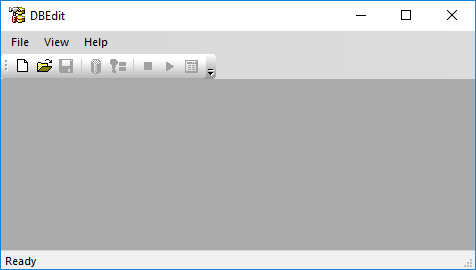
    DBEdit appears.
    The DBEdit window.
  2. Click File > New.
  3. Select Schema (dbd) and click OK.
  4. Connect to the production database:
    1. Click Datasource > Connect.
      The Select an ODBC Datasource dialog box appears.
    2. Select the data source to be copied.
    3. Click OK.
      A Tables will be created under schema/owner: dbo message appears.
    4. Click OK.
      The Admin Options dialog box appears.
    5. Click OK.
  5. Copy the datasource details into the new *.dbd file:
    1. Click Datasource > Compare with Dbd.
      The Compare Differences With Dbd dialog box appears.
    2. After the compare has finished, select the Objects Missing in DBD check box.
    3. Click Select All.
    4. Click Apply to DBD.
      Note that not everything from the production database will carry over. These differences should not affect archiving.
    5. Click Close.
  6. Click File > Save As.
    The Save As dialog box appears.
  7. Navigate to the folder where you want to save the *.dbd file.
  8. In the File name field, type Archive.dbd.
  9. Click Save.