
About Matching
ParaCutter allows you to tailor your service to differing needs for each day of the week.
The nature of runcutting is such that even minor differences in hourly service requirements can result in significantly different runcut outcomes. However, it may be desirable to maintain a significant level of consistency from one day to the next within a work week. In other words, the user prefers shifts that are relatively consistent from day to day even if that is not quite as efficient as some other solution that results in driver shifts that have no day-to-day consistency.
To provide for this, ParaCutter allows you to solve one day and then pattern other days after it, while still accounting for the differing requirements. First, solve the template day of the week. Then, refer to that day's solution when solving another day of the week.
The following graphic shows the applicable fields when referring to a previously created template.
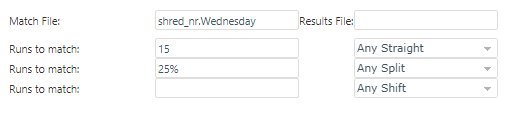
- Match File
- Type the name of an existing results file that to use as a template for a new
solution. The file selected is the solution file for the template day. The following rules apply:
-
The file must be in the userdata folder (set in the context property).
-
The name must be shed_nr.filename and must have a .dif extension.
Do not include the .dif extension when identifying the match file on this screen.
-
- Results File
- Type the name of the results file to save as the outcome of this job. It is copied
into the userdata folder (set in the context property) so that it can be used for a subsequent match job.
The results file is named something like shed_nr.m.89131.b0001000-1.dif. It should typically be named as something like shed_nr.Wednesday.
Do not add the .dif extension to the name.
- Runs to match
- Up to three match rules for a job can be added using the fields and the list of
options beside each field. Define each rule as either a number to match or a percent to
match.
From the list of options beside each field, choose to apply it against runs, splits, straights, or shift types allowed by the job. For example, the values in the graphic show that there are 15 straight shifts and 25% of all split shifts must match the sign-on and sign-off times of the solution referenced as the template.
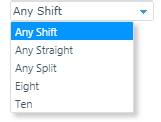
The following graphic shows a sample list of Shifts options in the third Runs to match rule:
Matching Rules
-
If no match file is entered in the Match File field, matching is disabled.
-
Choosing Match Prior Solution as an optimization objective will attempt to match run start and end times as a soft goal, but not for any specific number of runs.
-
Choosing Runs To Match and Shifts will cause the system to attempt to match the specific targets entered.
-
Choosing Match Prior Solution and also Runs To Match and Shifts will attempt to match at least the specified target number/percent of runs, but may also match more.
-
Setting a specific match target does not ensure that it will be accomplished.