
Importing Runs from a Job
If you are satisfied with the solution, click Import in the Navigation bar.
About this task
- Import the runs into a schedule to perform batch scheduling to test the ability of the
new runs to accommodate the trips of the day used as the basis for the analysis.
Trapeze recommends creating a new ParaCutter schedule type for this purpose, and copying the live day into a ParaCutter schedule. This allows you to run tests on the copy without altering the original live schedule.
- Import the runs as master runs with an effective date so that they are available for all future run activations. In this case, specify the days of the week that the runs are to be effective and what the effective date is.
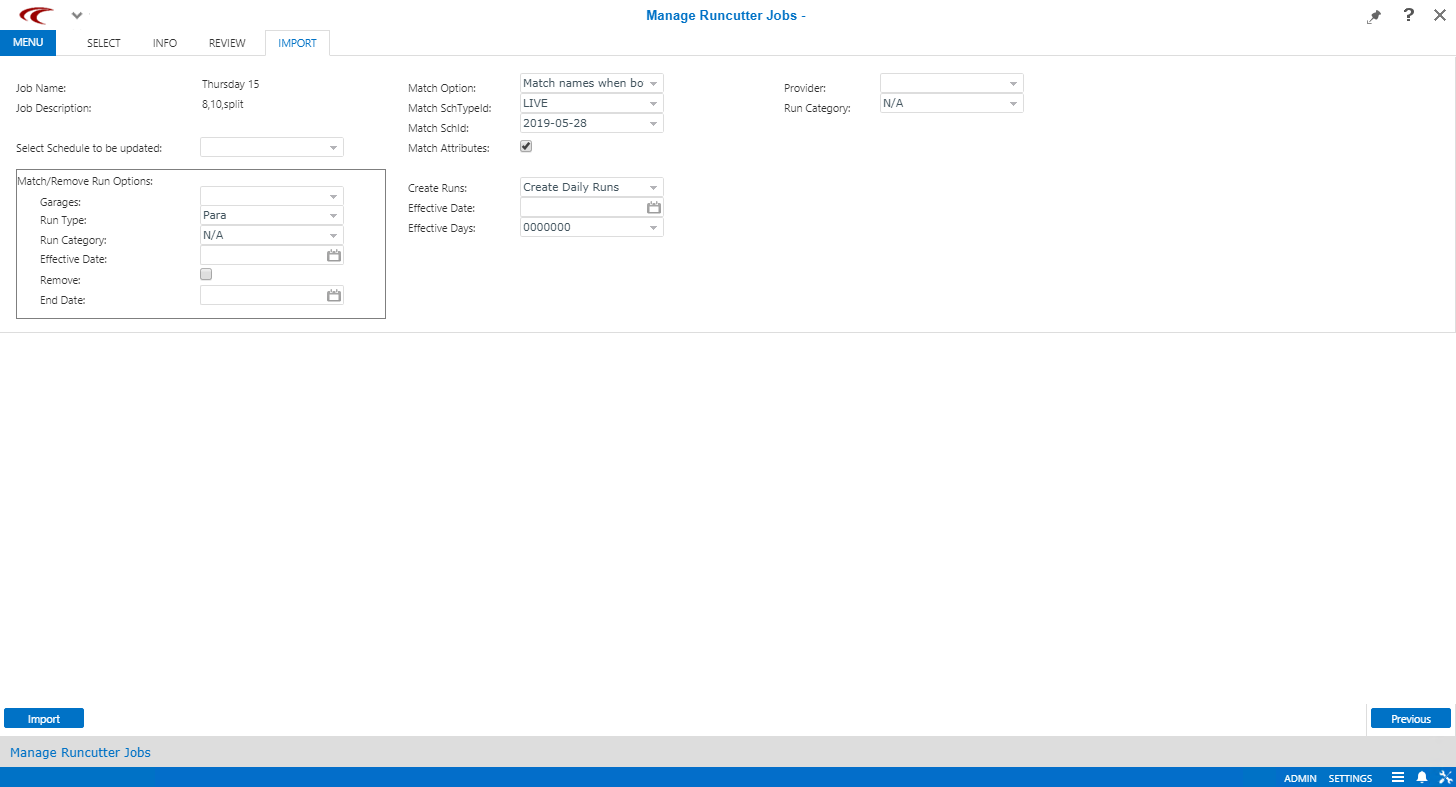
The following graphic shows the Import step.
Procedure
- In the Select step, select the job from which to import runs.
-
In the step manager, click Import.
The Import step opens.
- Fill in or select the desired options, as applicable.
- Click Import at the bottom of the screen.
- Optional:
To load the runs into a practice schedule:
- Optional:
To create new master runs: