
Determining Provider Faring
Trip Booking contains a feature that displays the amount of money a provider would charge a site for an individual trip.
Before you begin
About this task
The Provider Fares dialog box allows you to define how a chosen provider’s cost of serving a trip is computed for Low Cost Provider determination. To find out more about the Low Cost Provider functionality, refer to the PASS System Administrator and User Guide.
Provider rates vary among passengers, especially those who require a particular space type, such as a wheelchair. To accommodate fare calculation for varying passenger types, the Provider Fares dialog box is organized into Calculation Method, Provider Fares, and Provider Fare Exclusions areas.
The Calculation Method frame allows you to pick the type of calculation method to use when arriving at a fare amount.
- Use SpaceType for PassType and flat rate for all other Passengers allows you to use a space type rate specified in the Fare Type field of the Provider Fares frame when the passenger type selected from the list is used in the booking. All other passenger types are charged the flat rate specified in the Provider Fares area.
- Sum all Passenger rates is used for clients who require a space type. This calculation method sums up the space type and passenger type rates into one total rate for the trip.
- Use most expensive passenger rate calculates the more expensive rate of a client’s space type rate and passenger type rate.
The Provider Fares frame allows you to define fare types for specific space types.
Procedure
- On the Select tab, search for and select the provider.
-
On the Misc tab, click Faring.
The Provider Fares dialog box appears.
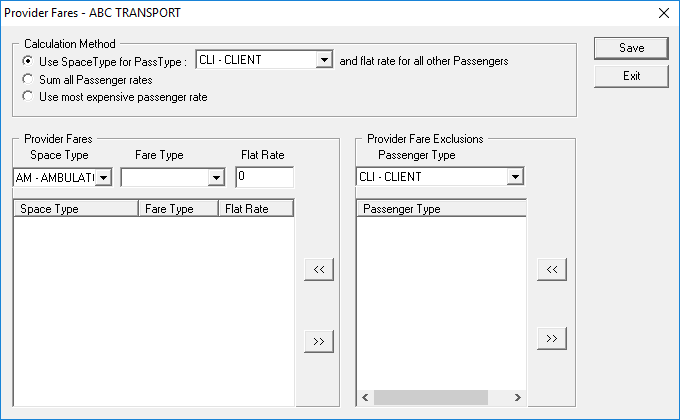
- In the Calculation Method frame, select a calculation method.
-
In the Provider Fares frame:
- In the Space Type list, click a space type.
- In the Fare Type list, click a fare type.
- In the Flat Rate field, type the flat rate in dollars.
-
To add a provider fare for a space type, click the double-left arrow button in the
Provider Fares frame:

- To define a passenger type to be excluded from paying a fare, select an existing passenger type from the Passenger Type list and click the double-left arrow button in the Provider Fare Exclusions frame.
- Click Save.
-
To remove a provider fare for a space type, select the provider fare and click the
double-right arrow button in the Provider Fares frame:

- To remove a passenger type from the fare exclusion list, select the provider fare and click the double-right arrow button in the Provider Fare Exclusions frame.
- Click Save.
- Click Exit.