
Adding Multiple Provider Contact People
Multiple contact people can be entered for a provider using the Contact Category dialog box.
Before you begin
Procedure
- On the Select tab, search for and select the provider for which you want to enter multiple contact people.
-
On the Detail tab, click the Contact
Info button.
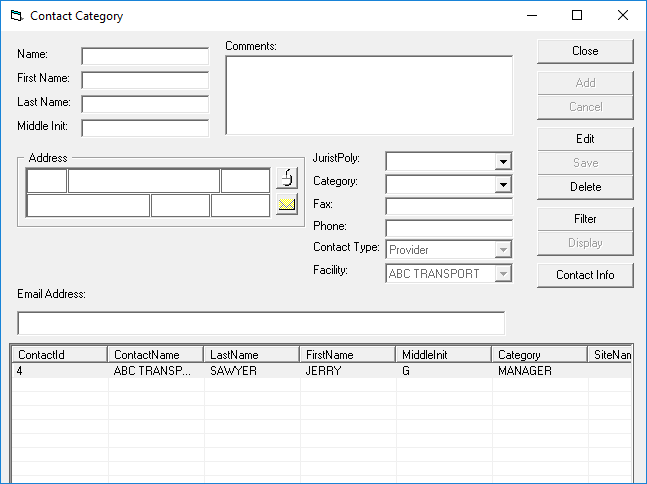
The Contact Category dialog box appears.
-
Provide the contact's information as required:
- Name
- Type the complete name or organization name of the contact, as it is specified in the Contact Category system property.
- First Name
- Type the contact's first name.
- Last Name
- Type the contact's last name.
- Middle Initial
- Type the contact's middle initial.
- Address
- Type the contact's address details.
The address must be geocoded before the contact can be added to a contact category.
- Comments
- Type any comments about the contact.
- JuristPoly
- (Jurisdiction Polygon) Click the jurisdiction polygon in the list to which the contact belongs.
- Category
- Click the contact category to which you want to add the contact.
- Fax
- Type the contact's fax number.
- Phone
- Type the contact's phone number.
- Contact Type
- Click the contact type in the list: Provider.
- Facility
- Click the contact's facility type in the list: Provider.
- Email Address
- Type the contact's email address.
-
Click Add.
The contact entry is added to the list.
- Click Close.