Adding Points to Work Orders
The Manage Points feature in the Operations pane allows you to add or remove points from a work order.
- Search for the work order you want to modify.
-
In the Operations pane of the Case Number
screen, click Manage Points.
The Manage Points window appears.
-
On the Operations pane, click Manage
Points.
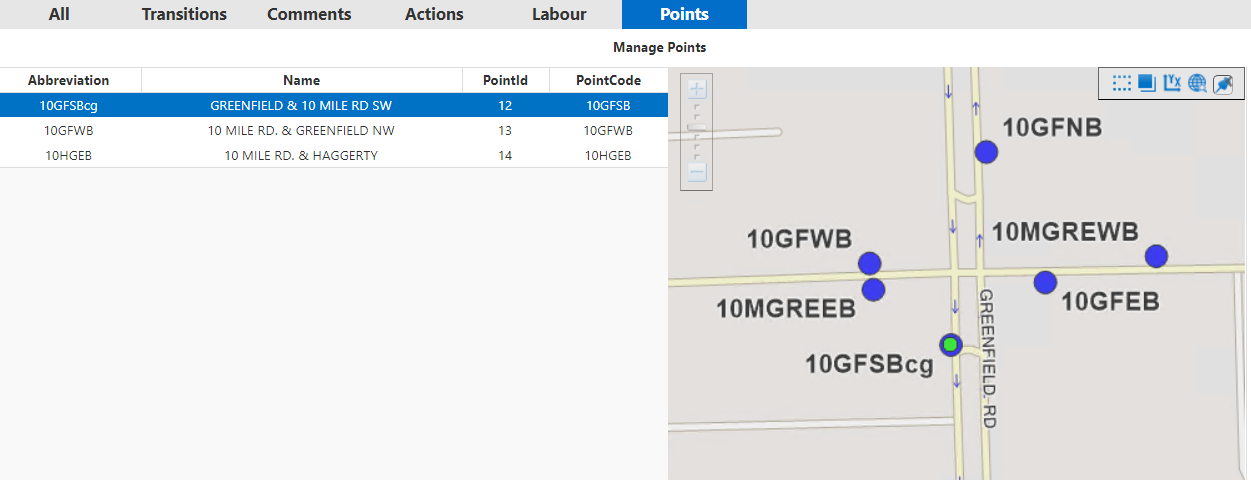
The Manage Points window appears showing the contents of the Points tab: the selected point and a representation of the point on the map.Note: You can adjust the display of the points on the map with the context property. Setting higher values will cause the points to appear smaller (zoom out) while setting lower values will magnify their appearance (zoom in.)
The setting of this context property applies to all work order reports regardless of the points associated with them.
-
Click Find.
Another window appears showing filters similar to those in the Points screen.
-
Select the filters you want to apply to search for the points you want to add, and
click Find.
The points that match the selected filters are shown on the bottom left grid.
As you click a point, the dot representing it is shown as a green dot outlined in blue on the map.
-
Select the points that you want to add to the work order, and then click
Add on the map. To add all the points shown on the
Points list, click the upper-left corner of the grid.
The selected points are shown in the left pane of the Manage Points screen.
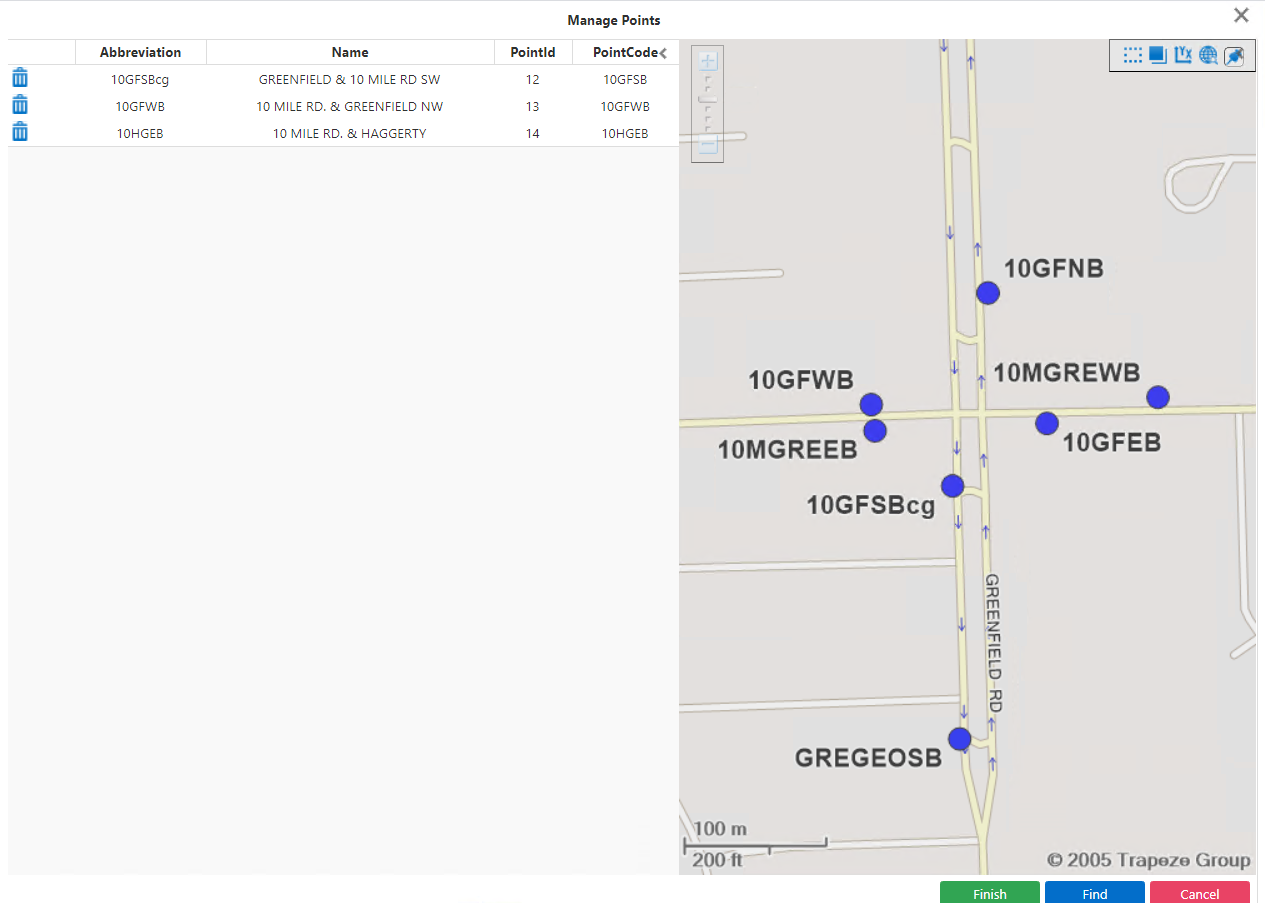
- Click Finish.
-
In the Case Number screen, click the Points
tab.
The selected points are shown in the grid and the map in the Manage Pointsframe.