
Attaching Bus Stop Images and Documents
To provide extra information about the bus stops, you can attach an unlimited number of documents to the bus stop records. Documents can include image files, Microsoft Word documents, and PDF files.
-
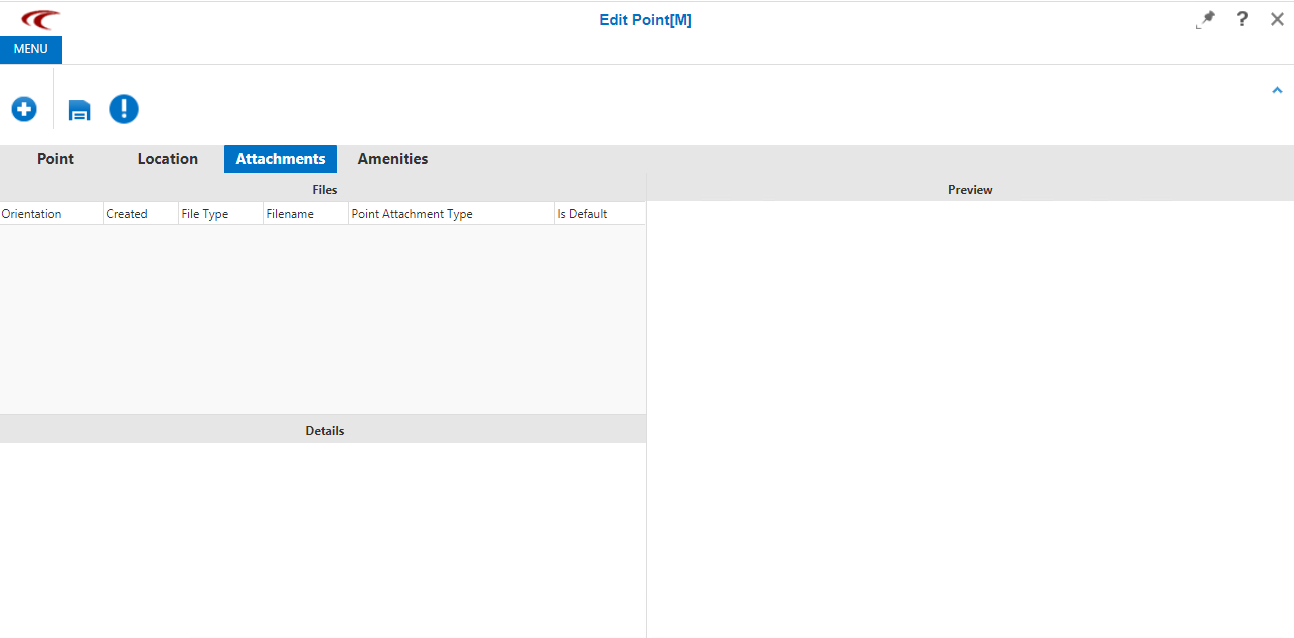
Open the Attachments tab.
-
Do one of the following steps:
- Click the Attach New File button:
 .
. - Right-click on the Files pane. and select New.
The File Upload dialog appears.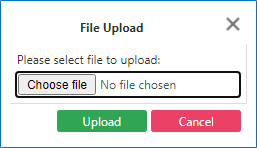
- Click the Attach New File button:
-
Click Choose File.
The Open dialog appears.
-
Browse to the file that you want to upload, and then click
Open.
The File Upload dialog shows the name of the attached file.
-
Click Upload.
The attachment is listed on the Files pane of the Attachments tab. The contents of the file are shown on the Preview pane. Bus Stop Manager automatically records the date and time when you attach a document.
- Optional: Change the time, and add other information about the attachment in the Description field if necessary.
- Optional: To set a file as the default file that users can view on the Preview pane when multiple images are attached, click the Is Default check box of the file.
 .
.