Exporting Data
The Export feature allows you to export bus stop or work order data in different forms, for example, export bus stop data to a Geographic Information System (GIS).
-
Click Export on the Stop Manager
list.
The Export screen appears.
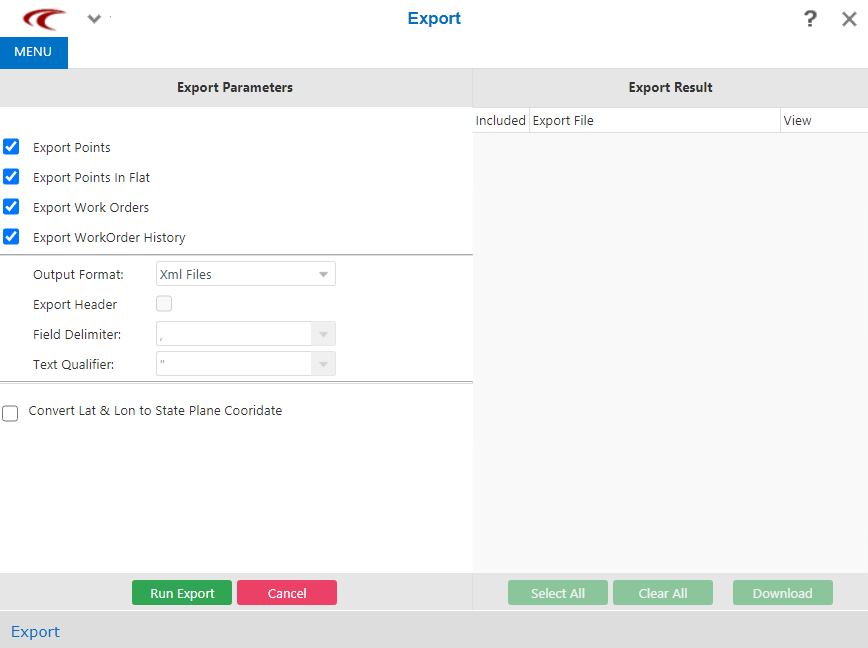 In the Export Parameters pane, the following options are selected by default:
-
Export Points
- Export Points in Flat
- Export Work Orders
-
Export Work Order History
If you do not require a specific type of data, clear the check box beside the appropriate field.
-
-
From the Output Format list, select the format you want:
- XML – This is the default.
- Delimited Text Files
- Optional:
If you chose Delimited Text Files, perform the following
steps:
- “ - Data is enclosed by double quotation marks.
- ‘ - Data is enclosed by single quotation marks.
- {none} - No marks are applied to the data.
- Optional:
To convert the latitude and longitude coordinates to the State Plane Coordinate System,
select the Convert Lat & Lon to State Plane Coordinates check
box.
BSM supports conversion to the Lambert conformal conic map projection (LCC). You must set the parameters before you run the export. You can also open a project file to set the parameters automatically.
-
Click Run Export.
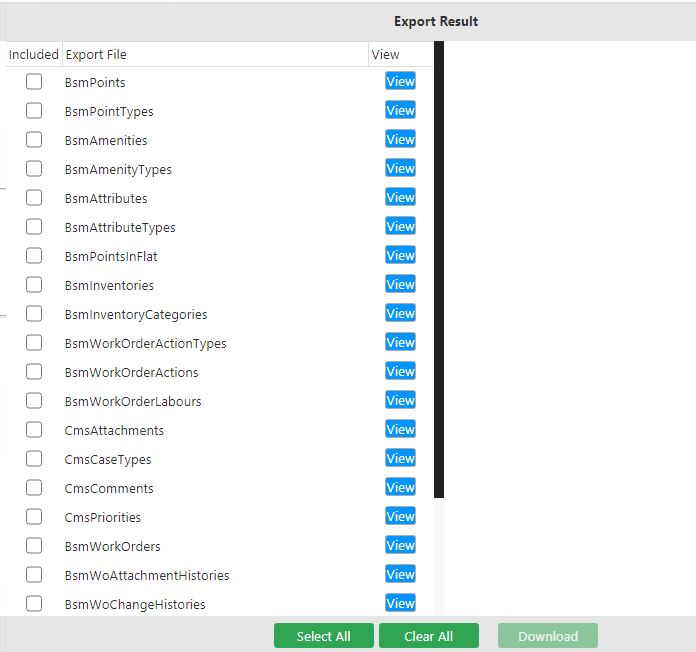
The export results are shown in the Export Result pane.