Running Standard Reports
Standard reports have been designed to generate data that is commonly used or applicable to most transit sites.
-
Click Report Explorer in the Reports
list.
The Report Explorer screen lists available reports.
-
In the Report Types pane, double-click the report that you want to
run.
For most reports, parameters appear in the upper pane in the middle column.
-
To define the data that appears in the report, enter or choose the appropriate values
for the parameters in the upper pane of the middle column.
For example, if you select Stops with Selected Amenity and Attributes, the right pane shows the parameters associated with it.
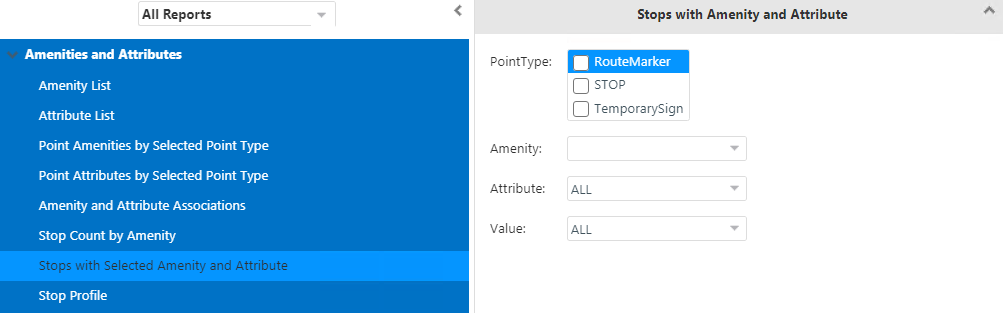
In this example, select the appropriate values in the Amenity, Attribute, and Value drop-down lists.
- Select the Stop check box in the Point Type field to include points that are categorized as stops only in the reports.
-
In the Delivery Options pane, click the method by which you want
the report delivered:
- Archive - Stores the report in the archive.
- E-mail - Sent to a designated user by email.
- In the Output Options drop-down list, click the report format you want.
-
Click Report.
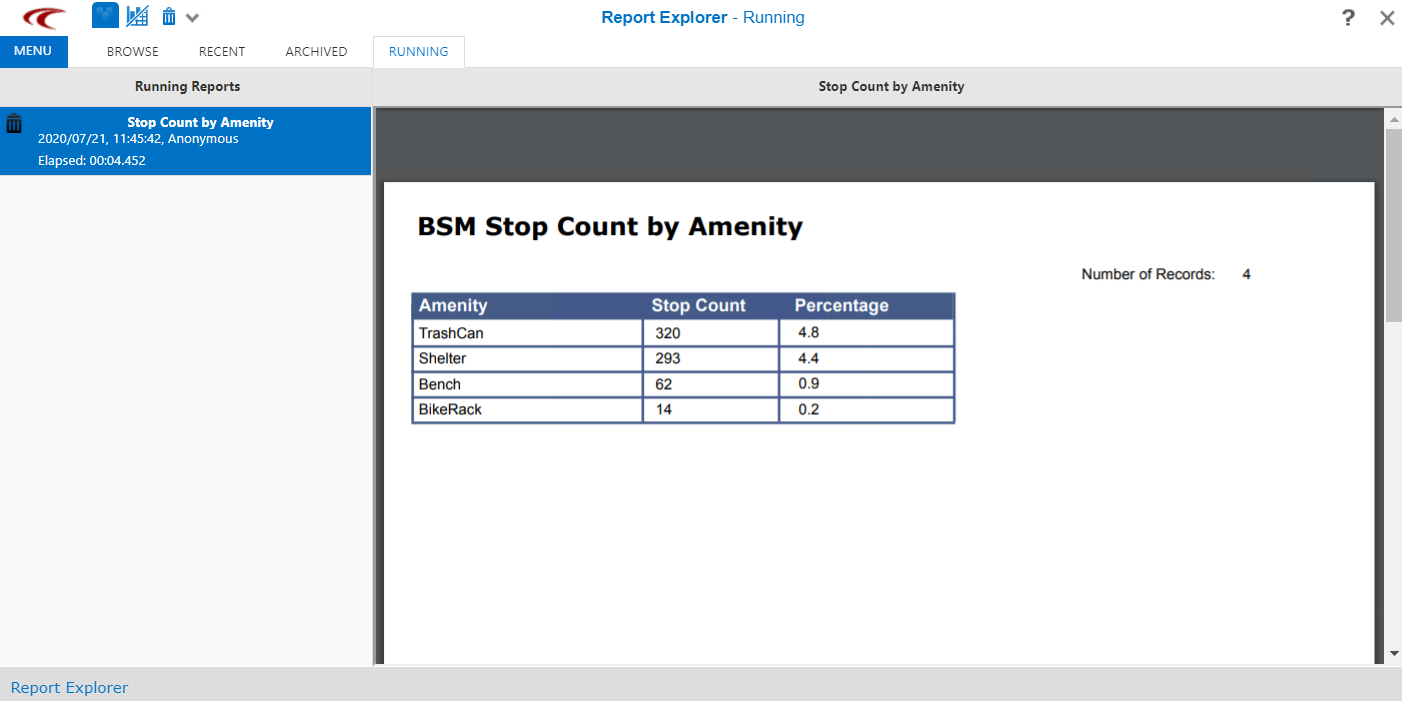
The length of time required to run a report depends on the parameters you specify. The Report Preview screen opens and displays the report. The following graphic shows a sample BSM Stop Count by Amenity report on stops: