
Copying Travels
Copy travels from other services with the Copy Travels feature.
-
Click .
The Swing and Garage checkboxes are selected by default.
The Copy Travels dialog appears.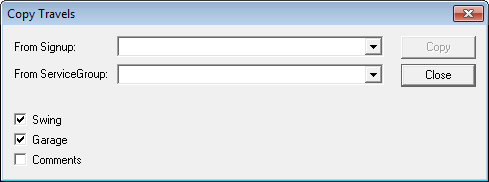
- In the From Signup list, select the sign-up period from which you want to copy travels.
- In the From ServiceGroup list, select the service from which you want to copy travels.
- To copy only one type of travel, clear the checkbox of the type of travel you do not wish to copy, for example, to copy Garage travels only, clear the Swing checkbox. To copy both types of travel, leave both checkboxes selected.
- Optional: To copy comments associated with the Swing and/or Garage travels, select the Comments checkbox.
-
Click OK.
If there are duplicate travels, a message box appears advising you of the number of duplicate travels and asking if you want to overwrite them.
- Click Yes.
- Click Close.