Assigning Comments
You can add a previously defined comment to a run or travel.
Open the Runs or Travels screen.
- Select the run or travel to which you want to add a comment.
-
On the footer, click Comment:
 The Comment pane appears on the right section of the screen.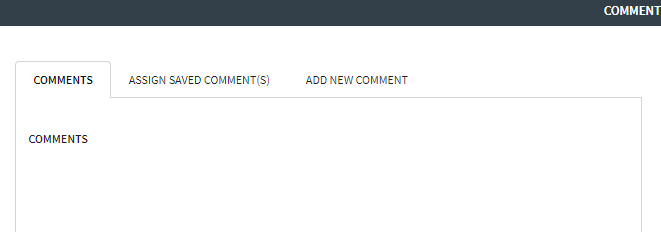
- Click the Assign Saved Comments tab.
-
In the Type drop-down list, select one of the following
options:
- System/Global - If selected, the comment is applied to all lines.
- Service Group - If selected, the comment is
applied to the service group in the current context.
The Weekday field is shown beside the Type field. Click the appropriate service group.
- In the User Type drop-down list, select the appropriate comment type.
-
Click Save.
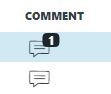
In the Comment field of the selected run or travel, a number indicating the number of comments associated with it is shown on top of the Comment symbol. If the comment is the first assigned to it, the number "1" is shown. If another comment is added, the number changes to "2" and so on.