
Copying Travels
You can copy travels from other services.
-
Click the Copy Travels button:
 The Copy Travels dialog appears.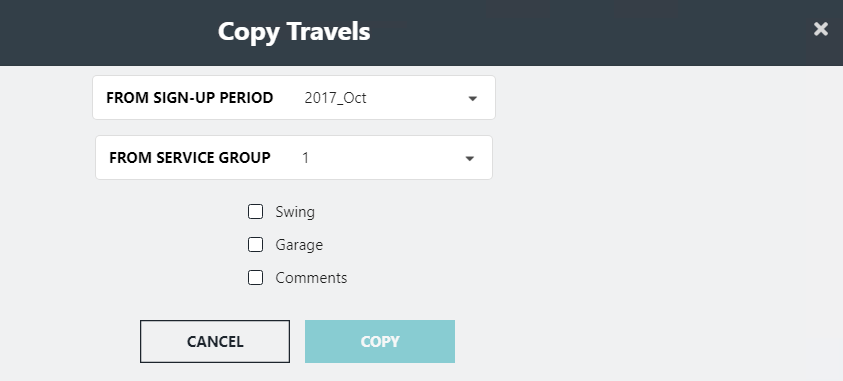
- In the From Sign-up Period drop-down list, select the sign-up period from which you want to copy travels.
- In the From ServiceGroup drop-down list, select the service from which you want to copy travels.
-
Select the type of travel that you want to copy:
- Swing
- Garage
The Copy button appears enabled. - Optional: To copy the comments associated with the travels to be copied, select the Comments check box.
-
Click Copy.
A message appears asking you to confirm the Copy action. Click Yes for the copy to proceed.
If there are travels of the selected type in the current context, a message appears indicating the number of travels that exist and asking if you want to overwrite these travels. If you click Yes, the system deletes the existing travels and replaces them with the copied travels. If you click No, the Copy procedure is stopped.
If there are no travels of the selected travel type to be copied, a message appears stating that there are no travels to be copied.