Place text in quotation marks for exact match search results.
Setting Exception Combinations on the Calendar
Use this method if you have not yet created any exception combination.
Press F3.
The Set Mode dialog box appears. Make sure that you have
the appropriate sign-up period.
Click File > Ancillary Data > Fixed > Exceptions.
The Exceptions dialog box appears.
On the Exception Combinations tab, click
Calendar.
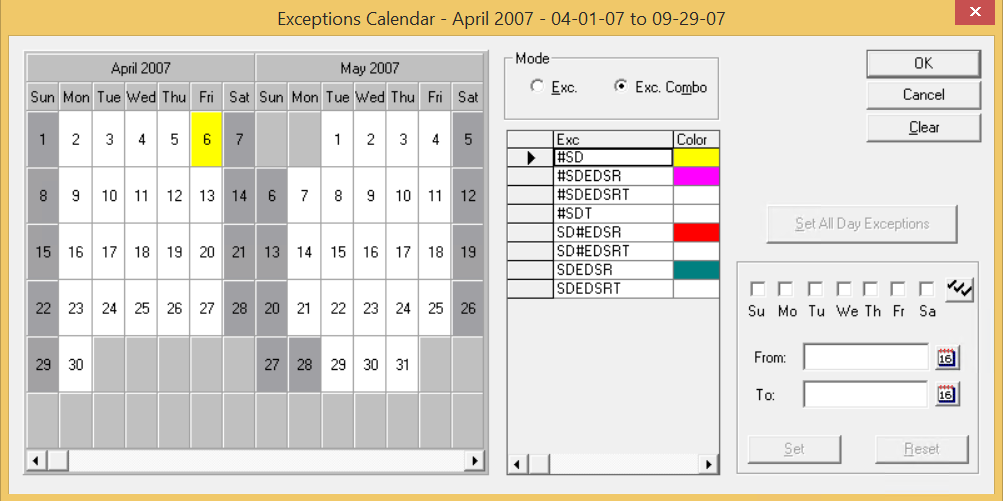
The Exceptions Calendar dialog box appears.
In the Mode frame, click Exc.
In the Exc column, the list of exceptions
appears.
From the Exc column, select an exception.
If you select a regular or exclusive exception and want the exception to apply
during the whole sign-up period, select the appropriate check boxes of the days of the
week.
If you select a day exception, the check boxes of the appropriate days are
selected.
Click Set.
The days you selected changes color in the calendar.
Optional: To set all calendar days with the appropriate day exception for the sign-up period,
click Set All Day Exceptions.
To apply the exception only on specific days, for example, only on the third Friday of the month instead of every Friday, click the appropriate days on the calendar as necessary.
To mark all exceptions to ensure that the proper exception combinations are created,
repeat steps 5 and 7.
Click OK.
The system looks at the exceptions chosen for each day of the sign-up and
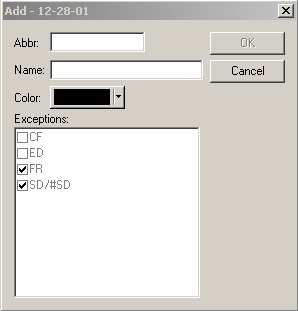
creates exception combinations from them. The Add dialog box
appears.
In the Add dialog box, enter the Abbr and
Name fields for the new exception combination.
From the Color palette, select a color for the new exception
combination.
Click OK.
The exception combination is added to the Exception
Combinations tab.
Optional: Complete the next Add dialog box.
As many Add dialog boxes are open as there are exception
combinations created from your selections.