Adding Exception Combinations with the Add Dialog Box
You can use the Add dialog box to add Exception combinations.
-
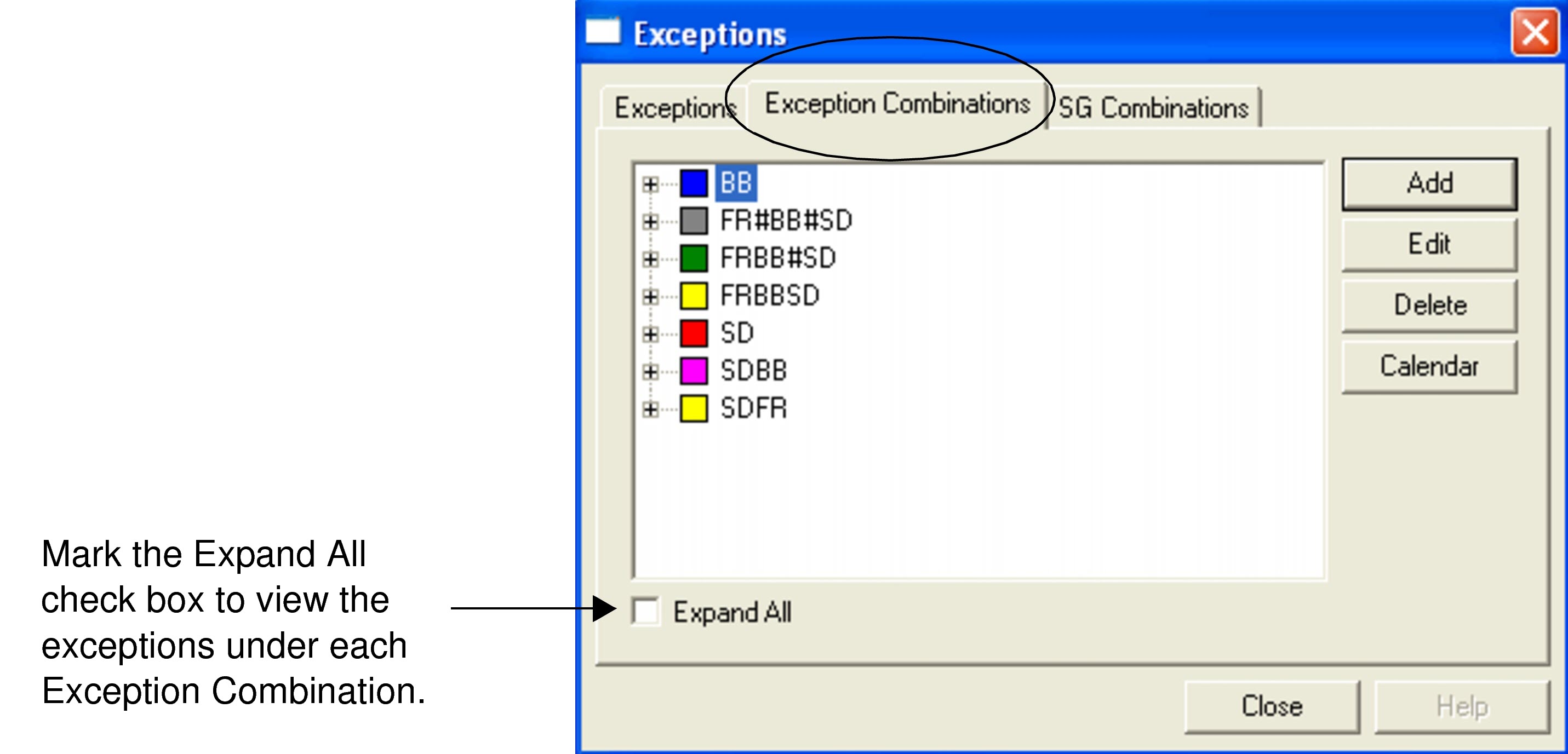
In the Exceptions dialog box, select the Exception
Combinations tab.
-
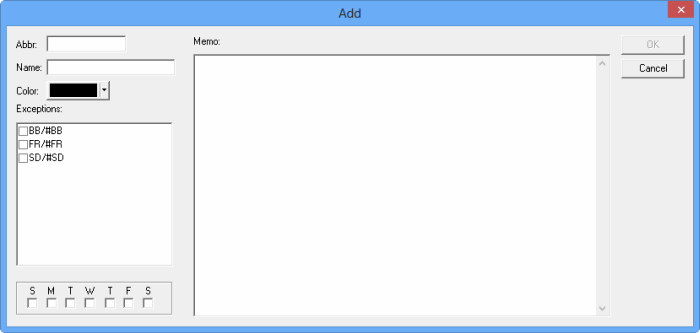
Click Add. The Add dialog box opens.
-
Click OK.
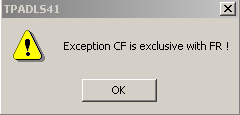
The new exception combination appears on the Exception Combinations tab.If you attempt to combine mutually exclusive options, an error message appears. The example shown here states that the exception CF (County Fair), which you may have set up to apply only on Saturdays and Sundays, can not be combined with FR which only applies on Fridays.
-
Click Close.
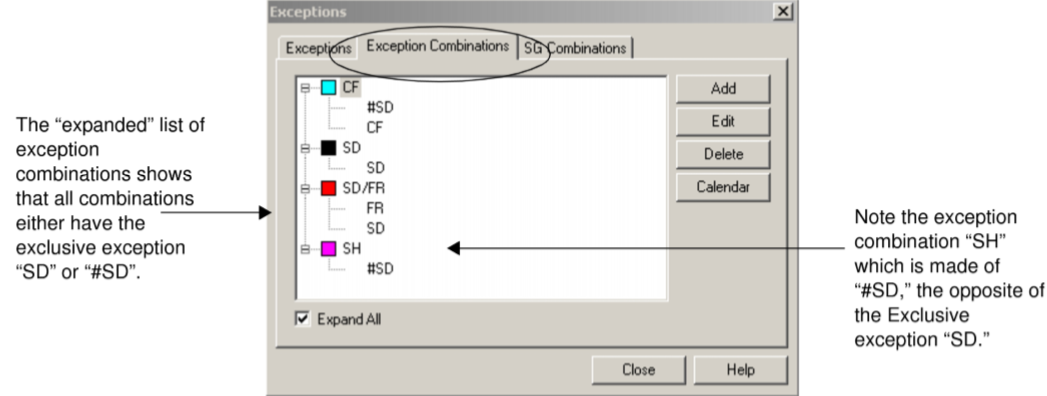
If an Exclusive exception exists, every exception combination created must contain either the Exclusive exception or its opposite. In the example shown in the following graphic, either SD or #SD appears in all the exception combinations, that is, if you do not actively choose SD, the #SD is automatically added.