
Adding Node to Node Records
You can add node to node pairs to help you keep run times consistent.
-
With the Node to Node tab displayed, click Edit:

The Edit dialog box appears.
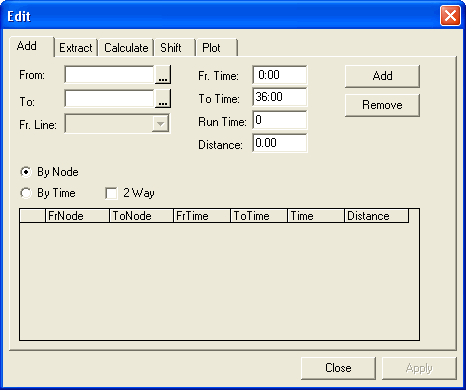
- On the Add tab, from the From and To drop-down lists, select the appropriate nodes for each field.
- In the Fr. Line drop-down list, select the line to which you want to add the node to node pair.
- In the Fr Time and To Time fields, type the start and end times of the run time interval you want to apply to the node to node pair.
- In the Run Time field, type the run time. If you do not have the field data on this but have geocoded data, use the Set tab in the Edit dialog box of the Run Times tab to calculate the run time.
- In the Distance field, type the distance between the nodes, for example, type "1" for 1 mile.
-
Depending on whether or not you want to create additional run time intervals, select
one of the following options:
- By Node: The Fr Time of the newly added run time is updated with the next interval time based on the last To Time entry. Use this option if you already know the run time intervals in your schedule.
- By Time: The time entries do not change when a run time is added allowing you to continue adding the next node to node pair using the same time entries (for example, all day time intervals).
- Optional: If the distance and time between the From and To locations are the same in both directions, select the 2 Way check box.
-
Click Add. The node to node pair appears in the table in the
lower section of the Edit dialog box.
Note: If the node to node pair already exists and its timespan overlaps with another node to node pair, a warning appears. Click Yes to override the previous pair.
- Optional: To add other node to node pairs, repeat steps 2 to 9.
- Optional: To remove a node to node pair from the table, select the pair and click Remove.
-
Click Apply.
The node to node pairs you created appear on the table on the Node to Node grid.
-
Click Close.
Note: If you click Close without applying your information, a message prompts you to click Yes to save the data, No to proceed with closing the dialog box, or Cancel to keep it open.