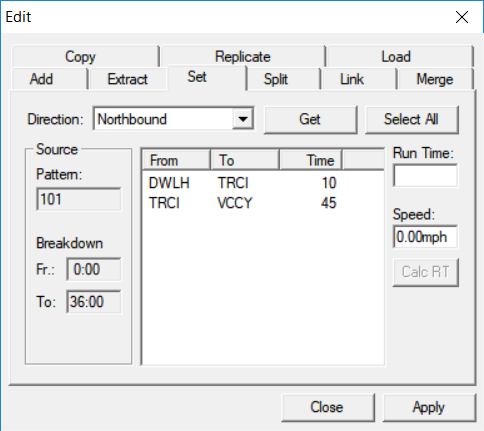
If you have several patterns and run time intervals, you can set your run times through
the Set tab of the Run Times Edit dialog
box.
-
On the Run Times tab, select the pattern and run time interval
for which you want to set run times.
If you have your nodes and stops geocoded and your pattern traces and run time
intervals completed, the system is able to automatically calculate your node to node run
times.
-
Click the Edit button:

The Edit dialog box appears.
-
Select the Set tab.
-
When you click Select All, all the node to node pairs in the
middle frame are highlighted. Since the run times have not yet been assigned or
calculated, each pair has a "0" in the Time column.
-
In the Direction list, choose the direction of the pattern you
selected.
-
Click Get. The Pattern number and the
From and To times of the pattern and run
time interval you selected appear in the Source frame. The list of
node to node pairs of the pattern appears in the middle frame.
-
From the list of node to node pairs, select the
pair for which you want to calculate the run time.
- Optional:
To calculate for all the node to node pairs in the pattern, click Select
All.
-
In the Speed field, type the speed of the vehicles that are
traveling the line during the selected interval. For example, type "15" for 15 miles per
hour.
-
Click Calc RT.
The calculated run times of the selected pairs appear in the
Time column.
-
Click Apply.
The calculated run times appear on the row of the selected pattern on the
Run Times tab.
-
Click Close.