
Splitting Run Time Intervals

If you have an existing run time interval which covers a large part of the service schedule and you find it necessary to break it into shorter periods, use the Split function.

  1. On the Run Times tab, select the run time interval that you want to split.
  2. Click Edit: Edit button

    The Edit dialog box appears.

  3. Select the Split tab.
    In the Direction field, the direction of the selected run time interval appears by default. In the Time field, the system generates the time at midpoint between the From Time and To Time of the selected run time interval. In the following graphic, the example shows the time as 18:00, which is the midpoint of the selected run time interval: 0:00 and 36:00, as shown in the Time fields in the grid.
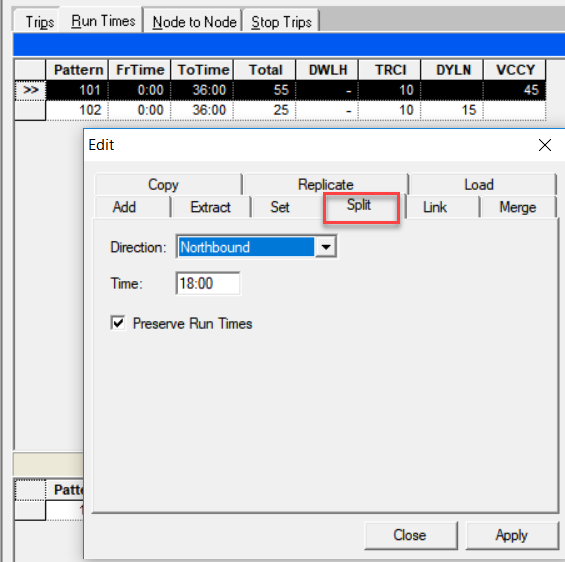
    Split tab with sample data
  4. In the Direction drop-down list, select the direction to which you want the split to apply (if you want to apply it to a different direction other than the default).
  5. To change the time which appears by default in the Time field, highlight the time and overwrite it with the time you want.
  6. To use the run times of the selected interval for the new interval, select the Preserve Run Times check box.
  7. Click Apply.
    New run time intervals appear on the Run Times tab. The To Time of the original run time interval is changed. The original run time interval cited in the example in step 3 becomes two intervals: 0:00 to 18:00 and 18:00 to 36:00.
  8. Click Close.